Syncing AI Dubbing and SRT Subtitles in CapCut (Jianying)
Getting SRT subtitles in CapCut is the easy part. The real job is making three things line up at once: the dubbed voice, the subtitles and the picture. This guide follows the CapCut desktop and Jianying Pro (剪映专业版) interfaces as checked in November 2026. It shows how to import the MP3 and SRT that AI Drama Voice exports, line every sentence up with its shot, cut a 9:16 vertical version, and fix the three problems people hit most: garbled subtitles, subtitles that drift, and several language tracks in one project.
- 2026 desktop interface
- 6 steps
- Garbled text / drift / multi-language
Updated Nov 5, 2026Fact-checked Nov 5, 2026
episode-01.en.srt
UTF-81
00:00:00,400 --> 00:00:06,900
The champagne tower is barely up when Nora opens her eyes — she's back on the day they framed her.
2
00:00:07,100 --> 00:00:11,800
Sign the share transfer, little sister. Everyone's waiting on you.
3
00:00:12,000 --> 00:00:15,700
Sign it? Maybe look at the big screen first, Vivian.
4
00:00:15,900 --> 00:00:22,000
The lights dim. On screen, security footage — Vivian tipping powder into Nora's glass.
5
00:00:22,200 --> 00:00:25,000
Turn it off! Who told you to play that?
On this page
- 1How to sync dubbing and video in CapCut: 6 steps
- 2What the MP3 and SRT from AI Drama Voice look like
- 3Garbled SRT subtitles after import
- 4Subtitles shifted, or drifting further off over time
- 5Keeping several language tracks in one project
- 6Changed one line after export? Replace just that line
- 76 habits for the vertical edit
- 8Frequently asked questions
How to sync dubbing and video in CapCut: 6 steps
Menu names follow CapCut desktop, with the Jianying Pro labels in brackets; they shift slightly between versions. The mobile apps can import SRT too, from the Text or Captions menu.
- 01
Step 1
Export MP3 and SRT from AI Drama Voice
When generation finishes, download one MP3 and one SRT per language. File names carry the language code, for example .en.mp3 and .en.srt. For several languages, download the ZIP: it holds every language's MP3 and SRT.
Tip · Always pair files of the same language. English captions on the Indonesian audio is an easy mistake.
- 02
Step 2
Create a project and import video and MP3
Start a new project (开始创作 in Jianying), drag the video and the MP3 into the media panel, then onto the timeline: video on the main track, MP3 on an audio track below. If the video still has its Chinese voice, mute the main track's original audio (关闭原声) or turn the clip volume down.
- 03
Step 3
Import the SRT
Click Text at the top, choose Local captions on the left (本地字幕), then Import, and pick the .srt of the same language. Some versions call it Import local captions (导入本地字幕); you can also drag the .srt straight onto the timeline. The captions land on their own track, placed by their timecodes.
- 04
Step 4
Start voice and captions at the same point
SRT times are counted from the start of the MP3. After import, check that the MP3 and the first caption begin at the same place. To move them, box-select the audio clip and every clip on the caption track and drag them together.
- 05
Step 5
Fine-tune line by line against the shots
If the picture is cut to the voice (AI comics, story videos), cut the picture to the dub. If the picture is locked, split the MP3 in the gaps between lines (playhead in the gap, Ctrl+B), slide each line under its shot, and move that line's caption with it.
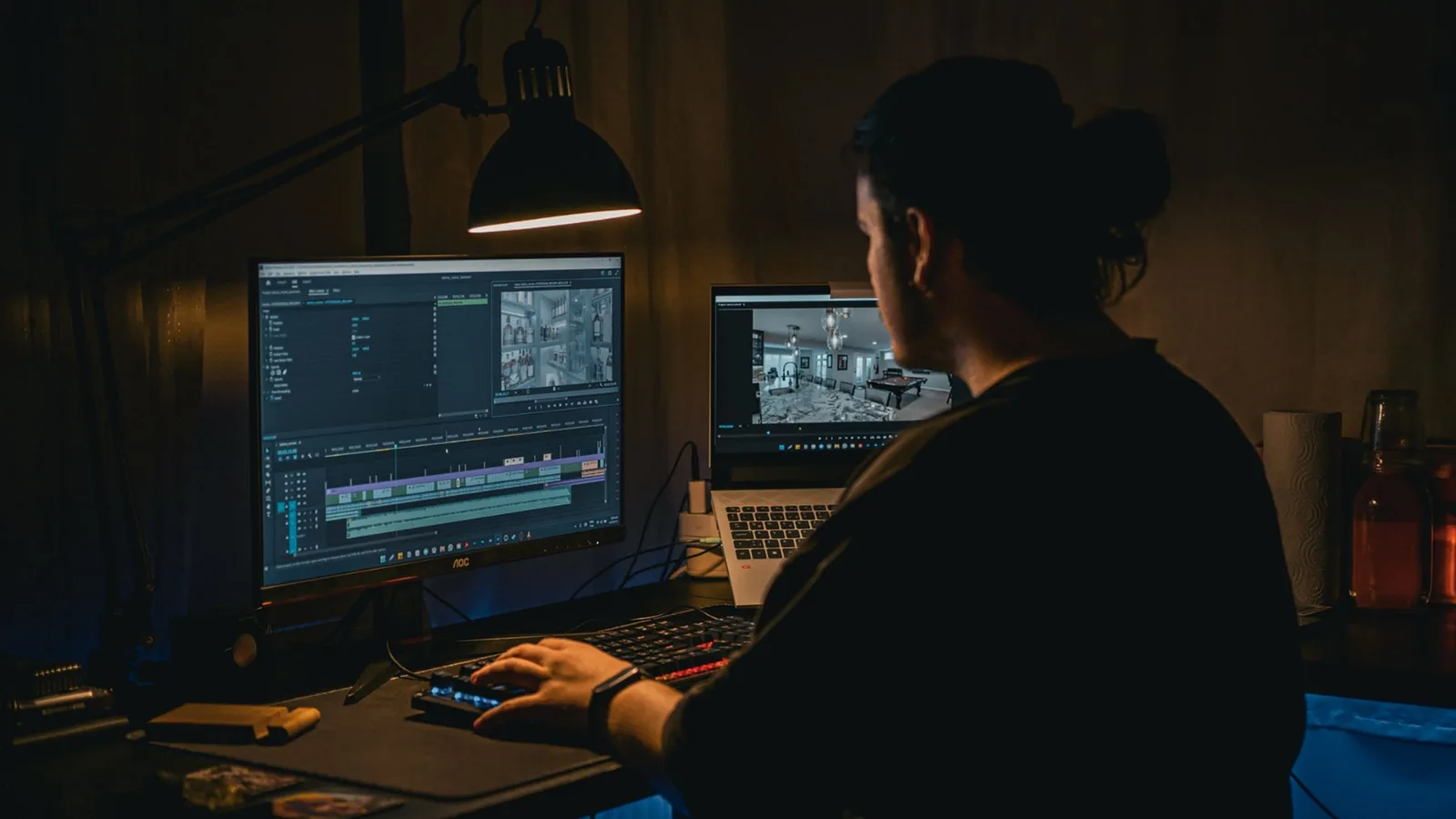
When the picture is locked, split the dub in the gaps between lines and slide each line, with its subtitle, under its shot.Image: Cemrecan Yurtman / Pexels - 06
Step 6
Set 9:16 and export
Set the canvas ratio under the player to 9:16 and style and place the captions. Click Export at the top right with video export on; tick the captions export option and choose SRT if you also want a subtitle file.
What the MP3 and SRT from AI Drama Voice look like
Once you know how these two files are built, you know what to move on the timeline and what to leave alone.
SRT is the most widely supported subtitle format and opens in any text editor. Each cue has three parts: a number, a start and end timecode, and the text, with a blank line between cues. Here is one English cue as AI Drama Voice exports it:
| Part | Example | Notes |
|---|---|---|
| Number | 1 | Starts at 1, one cue per line of dialogue |
| Timecode | 00:00:00,350 --> 00:00:03,120 | hours:minutes:seconds,milliseconds; start --> end |
| Text | Drink this, sis. Tonight you'll be the happiest woman in the room. | Only the spoken line, without speaker name or emotion tag |
Four details that matter for syncing
- Timecodes come from the dub itself. The MP3 is assembled line by line, and every cue starts and ends where that line actually sits in it, so an MP3 and SRT that start together are already in sync.
- There is a gap of about 0.35 seconds between lines, and a short one before the first line. Those gaps are the safest places to split the audio in your editor.
- A foreign-language SRT holds the foreign lines, timed to the foreign dub, so its timecodes differ from the Chinese file.
- Files are UTF-8 with a BOM and Windows-style CRLF line breaks, which CapCut, Jianying and Premiere all read directly.
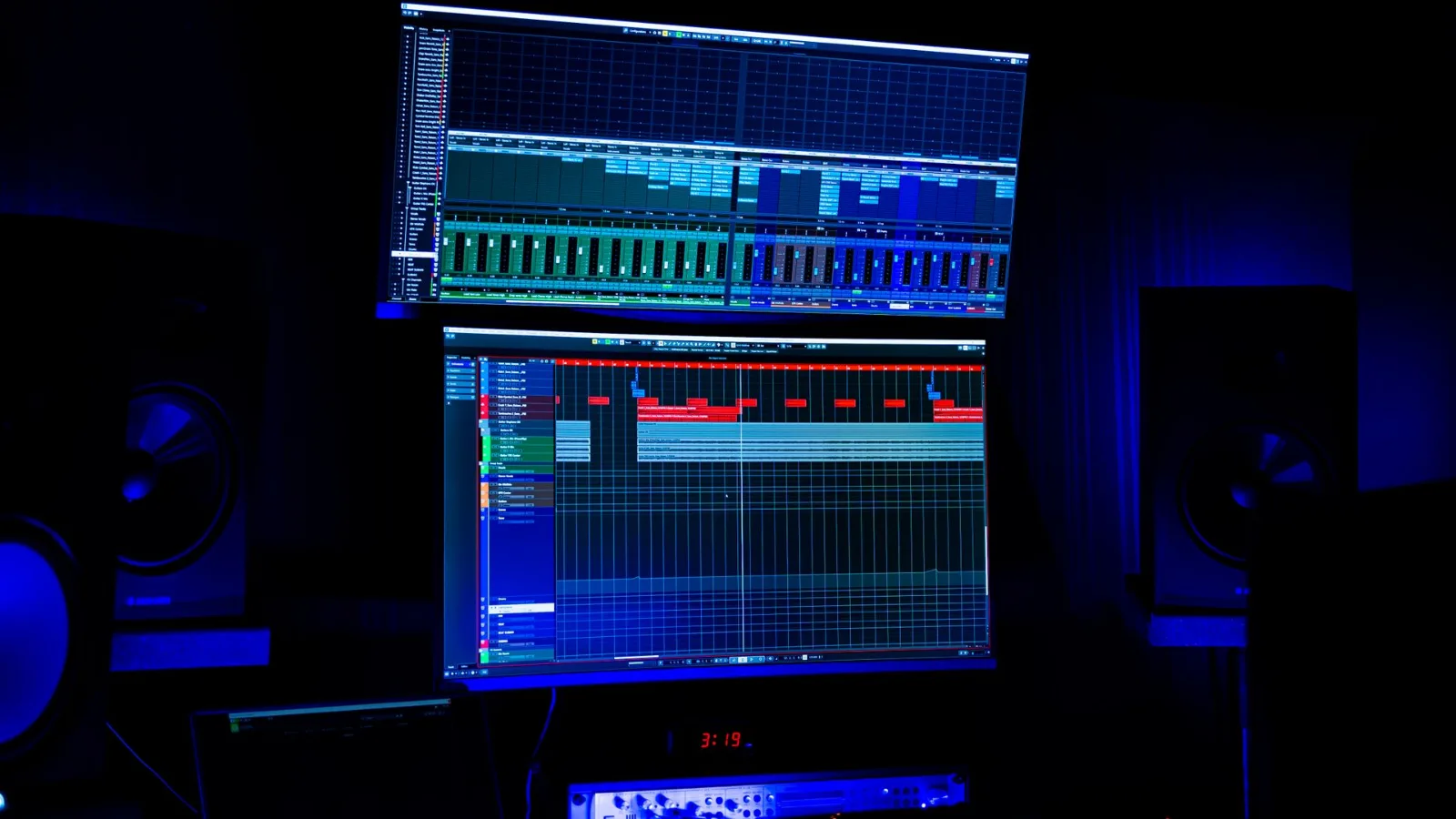
Straight answer
AI Drama Voice delivers audio and subtitles only. It does not render video, lip-sync, or process a video you already have. Picture, voice and captions come together in CapCut or Jianying.
Garbled SRT subtitles after import
“Garbled” covers several different problems. Identify the symptom first, then apply the matching fix.
| Symptom | Cause | Fix |
|---|---|---|
| Chinese turns into strings of random characters | The file was re-saved as ANSI, GBK or another encoding | Open in Notepad → Save as → encoding UTF-8 → import again; or download the original file again |
| Thai, Vietnamese, Korean or Japanese shows as empty boxes | Not an encoding issue: the caption font lacks that script | Switch the captions to a font that supports the language |
| Every line lands in one caption, or timecodes appear as text | The file structure broke, e.g. line breaks removed or a spreadsheet re-saved it | Never open SRT files in Excel; download the original again |
| The file doesn't show up or nothing happens | The extension became .srt.txt because the system hides extensions | Show file extensions and rename it back to .srt |
Edit captions inside the editor
To fix a word or two, double-click the caption in CapCut and type. That is safer than editing the SRT outside and never touches the encoding.
Subtitles shifted, or drifting further off over time
When SRT subtitles in CapCut don't match the voice, the pattern of the error tells you the cause.
| Symptom | Usual cause | Fix |
|---|---|---|
| Every caption is early or late by the same amount | The audio was dragged without the captions, or its start was trimmed | Box-select the whole caption track and drag it to match the audio's start |
| The error grows the further you go | The dub was sped up or slowed down as a whole; captions don't scale with it | Don't change the dub's speed; to tighten it, trim the script and regenerate |
| Only a few lines are off | Those audio lines were moved on their own | Move those captions under their audio |
If you prefer to fix the file first, the SRT time shift tool can move every timecode forward or back before you import. A global shift only solves the first case; the other two have to be fixed on the timeline.
Matching built-in text-to-speech to its captions
With an editor's built-in text-to-speech, the generated audio and its caption clip are often not the same length, so you drag caption edges by hand to fit the voice, which gets slow over a whole episode. SRT from AI Drama Voice skips that step because every cue is timed from the real length of its dubbed line. For a full cast or several languages, voice the drama first and import it; let the editor do the editing. How the two tools split the work is covered in Jianying voiceover alternatives.
Keeping several language tracks in one project
When one drama ships in Chinese, English, Indonesian and more, there are two ways to organise the edit.
| Approach | How | Good for | Watch out |
|---|---|---|---|
| One project, many tracks | One audio track and one caption track per language; enable only the pair you are exporting | Few languages, picture not re-cut per language | Before export, check the other languages are hidden and muted |
| One project copy per language | Finish one version, duplicate the project, swap in the target language's MP3 and SRT | Many languages, or picture adjusted per language | Name each copy with its language to avoid exporting the wrong one |
Either way, remember that a foreign line rarely lasts as long as the Chinese one, so a cut point that works in Chinese may not work in every language. The good news is that each caption follows its own dub: align the audio and let the captions move with it.
When the source video has burned-in Chinese subtitles
If the original video has Chinese subtitles burned into the picture, new captions end up layered over them. The easiest fix is to ask the producer for a version without subtitles. If you can't get one, cover the old caption area with a dark bar or a blur effect and place the new captions on it. AI Drama Voice cannot erase subtitles from existing video.
Changed one line after export? Replace just that line
If one line needs changing after the edit is done, there is no need to redo the episode.
- 1.In the workshop, paste only that line with exactly the same speaker name, set the character back to its original voice and keep the same emotion. Generate and download that line's MP3 and SRT. You are charged for that line only; see pricing.
- 2.In the editor, find the old line and split the audio in the gaps before and after it (Ctrl+B twice), then delete it.
- 3.Drag the new MP3 into the same spot, starting where the old line started.
- 4.Double-click the caption, type the new line, and drag its edges to match the new audio.
- 5.If the new line is longer, nudge the following audio and captions later together; if shorter, close the gap or leave a beat.
Same trick for misread characters
If a Chinese character was misread, re-voice just that line and swap it in the same way. How to reword a line so it reads correctly is covered in fixing AI voiceover mispronunciation.
6 habits for the vertical edit
Lock the voice, then cut picture
For AI comics and story videos the picture can follow the voice. Align voice and captions first, then cut picture to the sound; it needs the fewest revisions.
Keep captions off the bottom edge
Short-video apps overlay titles, buttons and progress bars along the bottom and right side. Lift captions a little so nothing covers them.
Leave room for longer foreign lines
Foreign lines usually run longer than Chinese. When one doesn't fit, shrink the font or break it into two lines so it never runs off the frame.
Style one caption, apply to all
Set font, size and outline on one caption, then apply the style to all captions. Faster than editing each one, and consistent.
Keep music under the dialogue
Put voice, music and effects on separate audio tracks and lower the music so every line stays clear.
Watch the whole episode before export
Listen for wrong characters, wrong emotions and caption typos. Editors change their menus; this guide was checked against the November 2026 desktop versions. In Jianying Pro the import path is 文本 → 本地字幕 → 导入.
Frequently asked questions
In CapCut desktop, click Text, choose Local captions, then Import and pick the .srt file; you can also drag it onto the timeline. In Jianying Pro the same path is 文本 → 本地字幕 → 导入. The captions are placed on their own track by timecode.
Random characters usually mean the file was re-saved in a non-UTF-8 encoding: save it as UTF-8 in Notepad or download the original again. Thai or Korean showing as boxes means the font lacks that script, so pick a font that supports it.
If the picture is cut to the voice, cut it to the dub. If the picture is locked, split the MP3 in the gaps between lines, move each line under its shot, and move its caption with it.
Yes. In the export dialog, turn on the captions export option and choose SRT. If your captions came from AI Drama Voice, you already have the original SRT file.
Use one audio track and one caption track per language and enable only one pair when exporting, or, with many languages, duplicate the project per language. Foreign lines run to different lengths, so check the sync for each one.
Yes. Jianying Pro has the same timeline; the import path is 文本 → 本地字幕 → 导入, and everything else in this guide applies unchanged.




Dub first, then open the editor Voice first, then cut.
Voice the whole cast in every language in the workshop, export MP3 with line-timed SRT, and let your editor do the editing.
Billed by characters generated · Failed runs refunded automatically · Alipay, WeChat Pay and cards