Remove Silence From Audio: Find Long Pauses and Shorten Them
To remove silence from audio well, you shouldn't delete every quiet moment. This tool first measures the recording's noise floor, then finds stretches that are clearly quieter than speech and last long enough to count: dead air at the start and end is trimmed, and long pauses in the middle are shortened to a length you choose (0.4 seconds by default), so natural breathing room survives. Every change is marked on the waveform and can be cancelled one by one; add an SRT and the subtitles move with the same edits. Export MP3 or WAV; the file is never uploaded.
- Noise floor measured for you
- Long pauses down to 0.4 s
- Subtitles shift to match
- Nothing uploaded
Updated Nov 6, 2026Fact-checked Nov 6, 2026
Remove silence
ON DEVICERemove silence from audio: add a recording, check the waveform
Add a recording, plus its SRT if it has one. The tool marks the silent stretches it will shorten or trim on the waveform; listen through, cancel any you want to keep, then export.
How to remove silence from audio in five steps
The defaults suit most talking-head recordings and narration. On your first go, leave them alone and see which stretches get marked on the waveform.
- 01
Step 1
Add the recording
Voiceovers, recaps, lessons, interviews and audiobook narration all work. Any format your browser can decode is fine, MP3, WAV or M4A; one file can be up to 200 MB and 60 minutes (half in a phone browser). Add the SRT too if there is one.
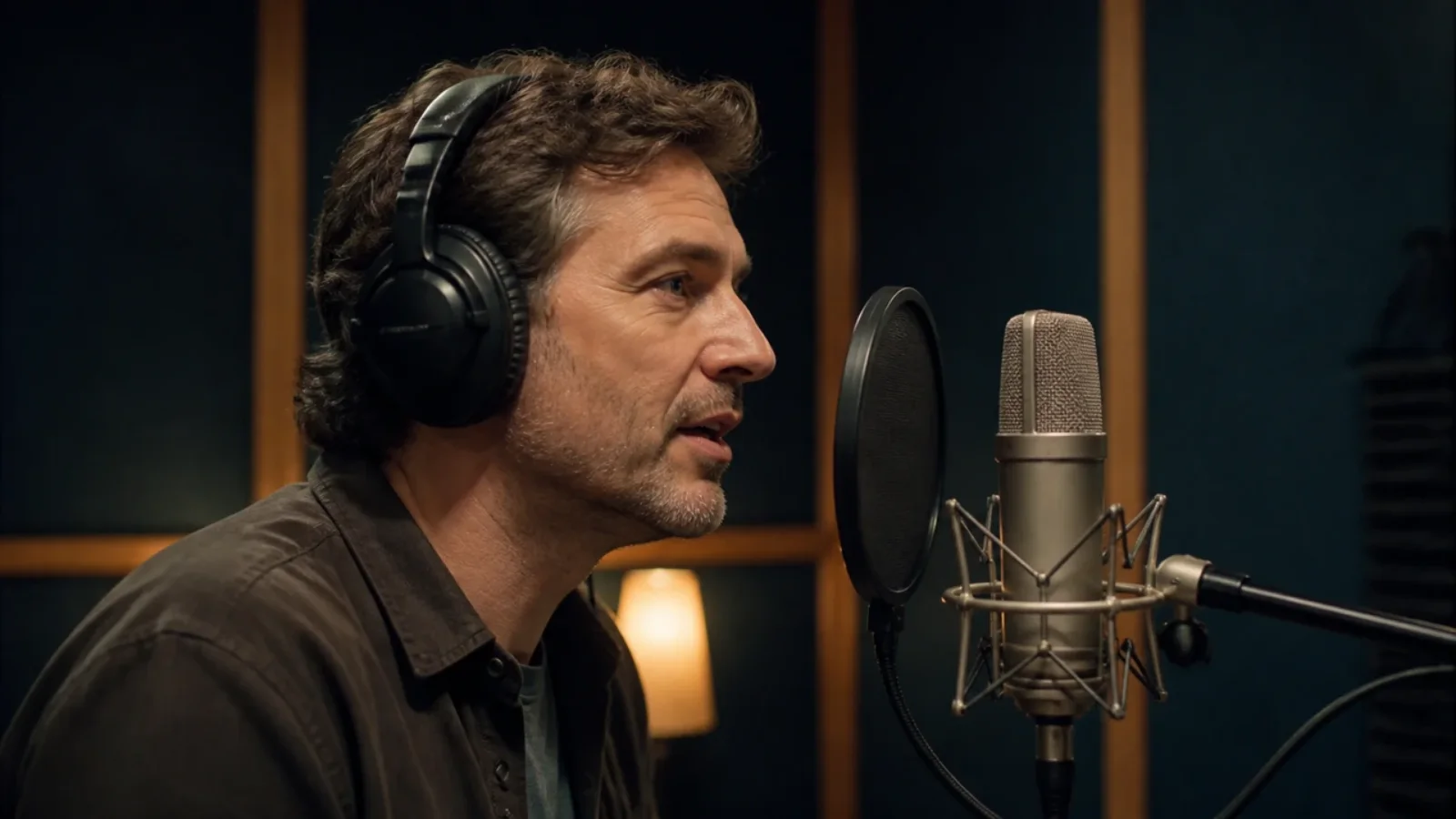
Voiceover, narration and audiobook recordings are the usual material for a silence remover. Illustration.Illustrative image - 02
Step 2
Check the noise floor and threshold
The tool measures how loud the quiet parts of the recording are (the noise floor), sets the threshold 10 dB above it, and shows you the floor, the automatic threshold and the threshold in use. In a noisy room the floor is higher and the threshold rises with it; you can also switch to manual and type a dBFS value.
- 03
Step 3
Set the minimum silence and the pause length
Minimum silence is 0.6 seconds by default: anything quieter but shorter isn't treated as a gap. Shorten pauses to is 0.4 seconds by default, and 0 deletes the pause completely. Dead air at the very start and end is handled too by default, trimmed to half the pause length, so 0.2 seconds; switch that off to leave the ends alone.
- 04
Step 4
Review each stretch on the waveform
Every stretch the tool will change is marked on the waveform, and a table below lists each one: where it is, how long the pause was and how much goes. Undo the ones you left on purpose, a dramatic pause for example, and the rest are processed as planned.
- 05
Step 5
Export audio and subtitles
Export MP3 or WAV. With an SRT added, you also download the shifted subtitles in the same format as the original. The length before and after, and the share removed, are shown above the waveform.
How silence is detected: noise floor, threshold, duration
Silence is not a flat line on a waveform. Recordings always carry some air-conditioning hum, electrical noise or room sound, so before it can cut silence from audio, the tool has to learn what quiet sounds like in this particular file.
Step one: measure the noise floor
The tool cuts the audio into blocks of about 20 milliseconds, measures each one, and takes a quiet-but-not-quietest level (the 10th percentile) as the noise floor. That is steadier than taking the single quietest block: one stretch of pure digital silence won't drag the threshold too low. The automatic threshold also never goes below −65 dBFS.
Step two: set the threshold
The default threshold is the noise floor plus 10 dB, which is about 3.2 times the floor's amplitude. Anything below roughly three times the floor counts as quiet; anything louder counts as sound. Normal speech sits well above that, so it isn't mistaken for silence. In a very noisy place, though, soft speech gets close to the floor, and it's safer to lower the threshold and remove a little less.
Step three: check the duration
Speech is full of tiny gaps, between words and just before plosives, and they are usually far shorter than half a second. So only stretches that stay quiet long enough count, 0.6 seconds by default. To remove more, drop it to 0.4–0.5 seconds; to deal only with really long dead air, raise it above 1 second.
| Material | Minimum silence | Shorten to | Why |
|---|---|---|---|
| Talking head, product demos | 0.5–0.6 s | 0.25–0.35 s | A tight pace sounds smoother with short gaps |
| Lessons, explainers | 0.6 s (default) | 0.4 s (default) | Gives listeners a moment to take it in |
| Audiobooks, story narration | 0.8–1 s | 0.5–0.7 s | The pause carries the emotion; don't squeeze it |
| Interviews, conversations | over 1 s | about 0.6 s | Keep the beat before the other person answers |
Shorten, don't delete: why a 0.4-second pause stays
Delete every pause and the file is as short as it can be, but it sounds read in one breath, with no edges between sentences.
Pauses do a job: they tell the listener a sentence has ended, let the speaker breathe and give weight to what comes next. Cut a voiceover too hard and it becomes tiring; cut an audiobook or an emotional story too hard and the drama goes. That's why the default is to shorten pauses to 0.4 seconds: long dead air goes, and every sentence still has an audible gap. The 0.4 seconds is kept as 0.2 on each side, so the tail of one sentence and the breath before the next both survive.
The cut itself matters too. Splice a waveform where it isn't at zero and you create a step, which plays as a click. The tool applies a 10-millisecond equal-power crossfade at every cut, about 441 samples at 44.1 kHz: too short to hear as a fade, long enough to remove the click.
Why the start and end aren't trimmed to zero
The dead air between pressing record and the first word, and after the last word, is trimmed to 0.2 seconds by default, not to nothing. Some players fade audio in when playback starts, and with no silence at all at the top the first word can get swallowed. That's also why dubs exported from the AI Drama Voice workshop always have 0.35 seconds before the first line.
How subtitles follow once the silence is gone
Subtitles are the part people forget. The audio gets shorter, the subtitles don't, and they run further and further ahead of the voice.
When you remove silence from audio here, everything works from one edit map: every time a piece is removed, everything after it moves earlier by that piece's length. The tool applies the same map to the audio and to the SRT, so both are cut in exactly the same places.
| Where | Before | After |
|---|---|---|
| Pause 1: 3.2–5.0 s, 1.8 s long | — | Shortened to 0.4 s, 1.4 s removed |
| Cue 2 | 00:00:05,000 --> 00:00:08,600 | 00:00:03,600 --> 00:00:07,200 |
| Pause 2: 9.0–11.5 s, 2.5 s long | — | Shortened to 0.4 s, 2.1 s removed |
| Cue 3 | 00:00:11,500 --> 00:00:14,000 | 00:00:08,000 --> 00:00:10,500 |
If a cue's start or end falls inside a removed stretch, for instance it appears in the middle of a pause, that time moves to the cut point: the cue gets shorter but keeps its order. A cue lying entirely inside removed silence is dropped, and the tool lists its number. If a subtitle file you already exported is just off by a fixed amount, the SRT time shift tool can move it as a whole.
Audio where a silence remover needs care
To remove silence from audio, there has to be silence to find. In these cases there either isn't, or it shouldn't go.
Finished mixes with background music
Music has almost no true silence: sustained notes, reverb tails and ambience fill every gap. Set the threshold below them and nothing is found; set it high enough to find something and quiet lines get treated as gaps, while cuts in the music make the melody and beat jump. When the floor is above −45 dBFS, or the loudest and quietest parts are less than 15 dB apart, the tool warns that the audio may have no true silence. Remove silence from the clean voice first, then add background music.
Audio exported from AI dubbing
Dubs exported from the AI Drama Voice workshop have exactly 0.35 seconds between lines, shorter than the 0.6-second default minimum, so the defaults change nothing. This tool is mainly for your own recordings and audio from elsewhere.
Conversations
The beat before someone answers is part of the rhythm. Use a longer minimum silence so only real dead air is touched.
Very noisy recordings
With a high floor, quiet speech sits close to it and is easy to cut by mistake. Lower the threshold or type a dBFS value, and remove less rather than more.
You'll split it into lines afterwards
Remove silence first, then split, and the clips come out tidier. Use split audio by subtitles, which can also split on silence when there are no subtitles.
Frequently asked questions
Add the recording here and the defaults find every silence longer than 0.6 seconds: the start and end are trimmed to 0.2 seconds and pauses are shortened to 0.4 seconds. Check the marks on the waveform and export. To remove more, lower both the minimum silence and the pause length; a pause length of 0 deletes pauses completely.
Deleting them does; shortening them usually doesn't. The default keeps 0.4 seconds, so sentences still have edges. A fast voiceover can go shorter; audiobooks and emotional pieces are better at 0.5 seconds or more. Listen to the whole result and raise the pause length if it feels rushed.
Start with automatic: the tool measures the noise floor and sets the threshold 10 dB above it. If quiet words get cut, lower the threshold towards the floor; if obvious gaps aren't found, raise it a little. Manual values are in dBFS, where 0 dBFS is the loudest level digital audio can hold and more negative numbers are quieter.
Not really. The music bed, reverb and ambience keep everything above the threshold, so there's no true silence to find; push the threshold up and quiet lines get cut, while cuts in the music make the melody jump. Remove silence from the clean voice first, then add the music.
Yes, if you add the SRT. The same edit map is applied to the audio and the subtitles: each removed piece moves every later cue earlier by the same amount, and both download together. A cue that sat entirely inside removed silence is dropped and listed.
CapCut's Chinese site (Jianying) lists a feature for automatically cutting talking-head recordings among its capabilities (checked 2026-11, source capcut.cn); the homepage doesn't say what it removes or whether the pause length is adjustable, so check inside the app. This tool lets you choose the pause length, cancel any cut and move the subtitles too, with no install and no upload.
No. Silence detection, splicing and encoding all happen locally in your browser; the recording and subtitles never leave your device, no AI is called and no sign-in is needed. More audio tools are on the free tools page.








Rather than cutting dead air, dub it clean No dead air to cut.
Paste a script or narration, let AI cast and dub it line by line with even gaps, and export an MP3 + SRT. Cast analysis is free.
Billed by characters generated · Failed runs refunded automatically · Alipay, WeChat Pay and cards