SRT Time Shift: Move, Delay or Stretch Every Subtitle Cue
An SRT time shift starts with one question: how are the subtitles off? If every line is early or late by the same amount, shift them all. If they are fine until one line and then jump, shift only from that line on. If the start is right and the gap keeps growing, stretch the timeline between two sync points. Drop your .srt into the tool below or paste it, pick a mode, enter the numbers and compare the old and new timecodes before you download. The file is processed in your browser and never uploaded.
- Offset in ms
- From cue N
- Two-point stretch
- Nothing uploaded
Updated Nov 5, 2026Fact-checked Nov 5, 2026
episode-01.en.srt
UTF-81
00:00:00,400 --> 00:00:06,900
The champagne tower is barely up when Nora opens her eyes — she's back on the day they framed her.
2
00:00:07,100 --> 00:00:11,800
Sign the share transfer, little sister. Everyone's waiting on you.
3
00:00:12,000 --> 00:00:15,700
Sign it? Maybe look at the big screen first, Vivian.
4
00:00:15,900 --> 00:00:22,000
The lights dim. On screen, security footage — Vivian tipping powder into Nora's glass.
5
00:00:22,200 --> 00:00:25,000
Turn it off! Who told you to play that?
SRT time shift: drop a file, pick a mode
Works with .srt and .vtt, dropped in or pasted. The table underneath shows every cue's original and adjusted timecode as you type, so check the first and last cue before you download.
How to shift SRT timing online in four steps
No video file and no install needed. Spend half a minute working out how the subtitles are off; the right mode matters more than the exact number.
- 01
Add the subtitle file
Drag in an .srt or .vtt, or paste its contents. Missing cue numbers, a period instead of a comma before the milliseconds, one-digit hours and extra blank lines are all read without complaint; cues that run backwards or overlap get a warning instead of an error.
- 02
Compare the first and last line
Play the video and note how far the subtitle is from the voice at the first line and at the last. Same gap at both ends: use a single offset. Fine at first, then off from one line: shift from cue N. Gap grows as the episode goes on: use the two-point stretch.
Tip · Subtitle before the voice: move it later with a positive number. Subtitle after the voice: move it earlier with a negative number.
- 03
Enter the numbers and watch the table
A single offset needs one value in milliseconds; shifting from cue N also needs the cue number; the stretch needs the time two cues should appear at, or a preset frame-rate ratio such as 23.976→25 or 25→23.976. The table lists the original and the adjusted timecode for every cue as you type.
- 04
Handle the warnings, then download
Cues pushed below zero are clamped to 0 and listed; neighbours that overlap after a stretch are flagged, and you can let the tool trim them. The download is UTF-8 without a BOM by default; tick "with BOM" and "CRLF line endings" for older Windows software.
Three ways to edit SRT file timing, one per kind of drift
Editing SRT file timing is not always a matter of adding or removing a few seconds, and an SRT time shift has more than one shape. Pick the wrong mode and the subtitles simply go wrong somewhere else.
Offset every cue
Every start and end time moves by the same amount. Use it when a logo or intro was added, the audio doesn't start at zero on the timeline, or the opening was trimmed.
Offset from cue N
Cues 1 to N−1 stay where they are; cue N and everything after it move. Use it when a flashback or ad break was inserted, a scene was cut, or one re-dubbed line came out longer.
Two-point stretch
Give one early cue and one late cue their correct times and every cue in between is rescaled. Use it for speed changes and frame-rate versions, where the start is right and the end drifts.
Before and after, side by side
The old and new timecode of every cue sit next to each other. Checking the first, a middle and the last cue tells you whether the shift is right.
Nothing changes silently
Cues clamped to zero and cues that overlap the next one after a stretch are listed separately, so you decide what happens to them.
Why subtitles drift, and which SRT time shift fixes it
An SRT file holds clock times such as 00:00:04,470, not frame numbers, so subtitles never move on their own. When they stop matching, something changed on the video or audio side.
| What you see | Usual cause | Mode to use |
|---|---|---|
| Every line is early (or late) by about the same amount | An intro or logo was added; the audio doesn't start at zero; the opening was trimmed | Offset every cue |
| Fine at first, then everything jumps from one line | A shot or ad was inserted; a scene was cut; one line was re-dubbed at a new length | Offset from cue N |
| Right at the start, worse and worse towards the end | The video was sped up or slowed down; the subtitles belong to a release with a different running time | Two-point stretch |
| Only a few scattered lines are off | Those clips were moved by hand in the editor | Not a batch job: drag those cues on the timeline |
Why frame rates make subtitles drift
Strictly speaking the frame rate itself doesn't move an SRT. What happens is that film is shot at 23.976 frames a second, and the 25 fps PAL release is usually the same film played about 4% faster, so it is shorter. Subtitles timed to the 25 fps release look fine at the start of a 23.976 fps video and are more than 25 seconds early by the ten-minute mark. No single offset can fix that; it needs a stretch.
| Subtitles made for → your video | Stretch factor | A cue at 00:10:00,000 moves to |
|---|---|---|
| 25 fps release → 23.976 fps | × 25 / 23.976 ≈ 1.0427 | 00:10:25,626 |
| 23.976 fps release → 25 fps | × 23.976 / 25 ≈ 0.9590 | 00:09:35,424 |
| 24 fps ↔ 23.976 fps | about × 1.001 | about 0.6 s off (about 3.6 s per hour) |
Example 1: a 2-second logo at the start
These are the first three cues of an SRT exported with a dub. The editor added a two-second brand sting before the episode, so every subtitle is two seconds early. One offset of +2000 fixes it.
| Cue | Original timecode | After +2000 ms | Text |
|---|---|---|---|
| 1 | 00:00:00,350 --> 00:00:04,120 | 00:00:02,350 --> 00:00:06,120 | The champagne tower is barely up when Nora opens her eyes. |
| 2 | 00:00:04,470 --> 00:00:07,060 | 00:00:06,470 --> 00:00:09,060 | Sign the share transfer, little sister. |
| 3 | 00:00:07,410 --> 00:00:09,880 | 00:00:09,410 --> 00:00:11,880 | Sign it? Maybe look at the big screen first. |
Going the other way, an offset of −1000 would put cue 1 at −0.65 seconds. Timecodes can't be negative, so the tool clamps it to 00:00:00,000 and lists it in the warnings; you may want to pull its end time in a little by hand.
Example 2: a 3.5-second flashback before line 12
Lines 1 to 11 match; from line 12 the subtitles are 3.5 seconds early. Choose "offset from cue N", enter 12 and +3500: cues 1 to 11 are untouched, cue 12 moves from 00:00:41,200 --> 00:00:44,050 to 00:00:44,700 --> 00:00:47,550, and every later cue moves by the same 3.5 seconds. A re-dubbed line that came out 0.8 seconds longer works the same way: +800 from the next cue.
Example 3: audio sped up to 1.1×
The stretch is a straight line: new time = first sync point's correct time + (old time − first sync point's old time) × (difference of the correct times ÷ difference of the old times). Say the whole track was sped up to 1.1×. Cue 1 used to start at 00:00:00,350 and should now start at 00:00:00,318; cue 32 used to start at 00:01:52,640 and should now start at 00:01:42,400. With those two pairs the factor comes out at about 0.909, and cue 16, originally at 00:00:55,000, lands on 00:00:50,000, exactly 55 divided by 1.1.
Keep the sync points far apart
Pick one cue near the start and one near the end. The further apart they are, the thinner a few milliseconds of guesswork get spread; two neighbouring cues would magnify the error across the whole episode.
Subtitle sync online, in CapCut, Premiere, PotPlayer or VLC: playback or file?
Many programs can nudge subtitles, but only an SRT time shift written into the file itself survives another computer, another editor or an upload.
| Program | What you can do | Does the .srt change? |
|---|---|---|
| CapCut desktop / Jianying Pro | After import, box-select every caption on the track and drag them together by ear | Only the project changes |
| Premiere Pro | The imported .srt becomes a caption track; select all caption segments and drag | Only the project changes |
| PotPlayer | During playback, < or > moves subtitles 0.5 s; / resets | No, current playback only |
| VLC | During playback, G or H moves subtitles 50 ms; or type a value under Tools → Track Synchronization | No, current playback only |
| This tool | Offset, offset from cue N, two-point stretch | Saves a new .srt |
A handy combination: play the video in VLC, press G or H until the subtitles meet the voice, and the delay VLC shows on screen is your offset. Type that number into this tool and download a corrected SRT. Dragging the caption track is fine for a rough match by ear; for millisecond accuracy, shifting only the second half or stretching, fix the SRT here first and then import it. The import steps are in the CapCut sync guide.

SRT time shift or TXT to SRT?
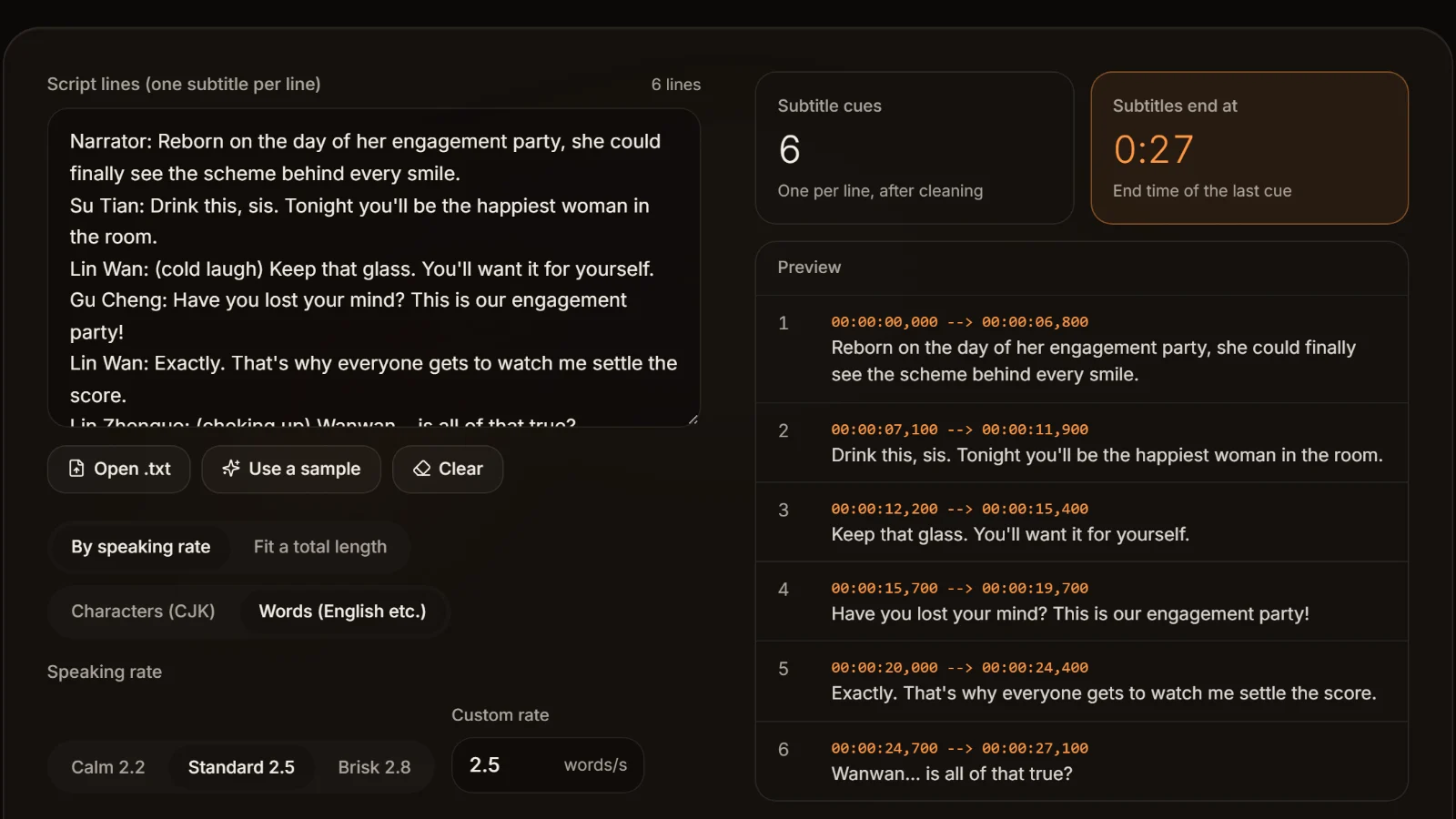
TXT to SRT builds a new subtitle file from script lines and estimates the timing from a speaking rate. This page repairs a file that already exists and keeps its timecodes as the reference. Only lines in hand: use the converter. An .srt that is merely out of sync: use the shift. If a cue then shows too much text, run it through the subtitle line length checker.
When a dubbed SRT needs a time shift
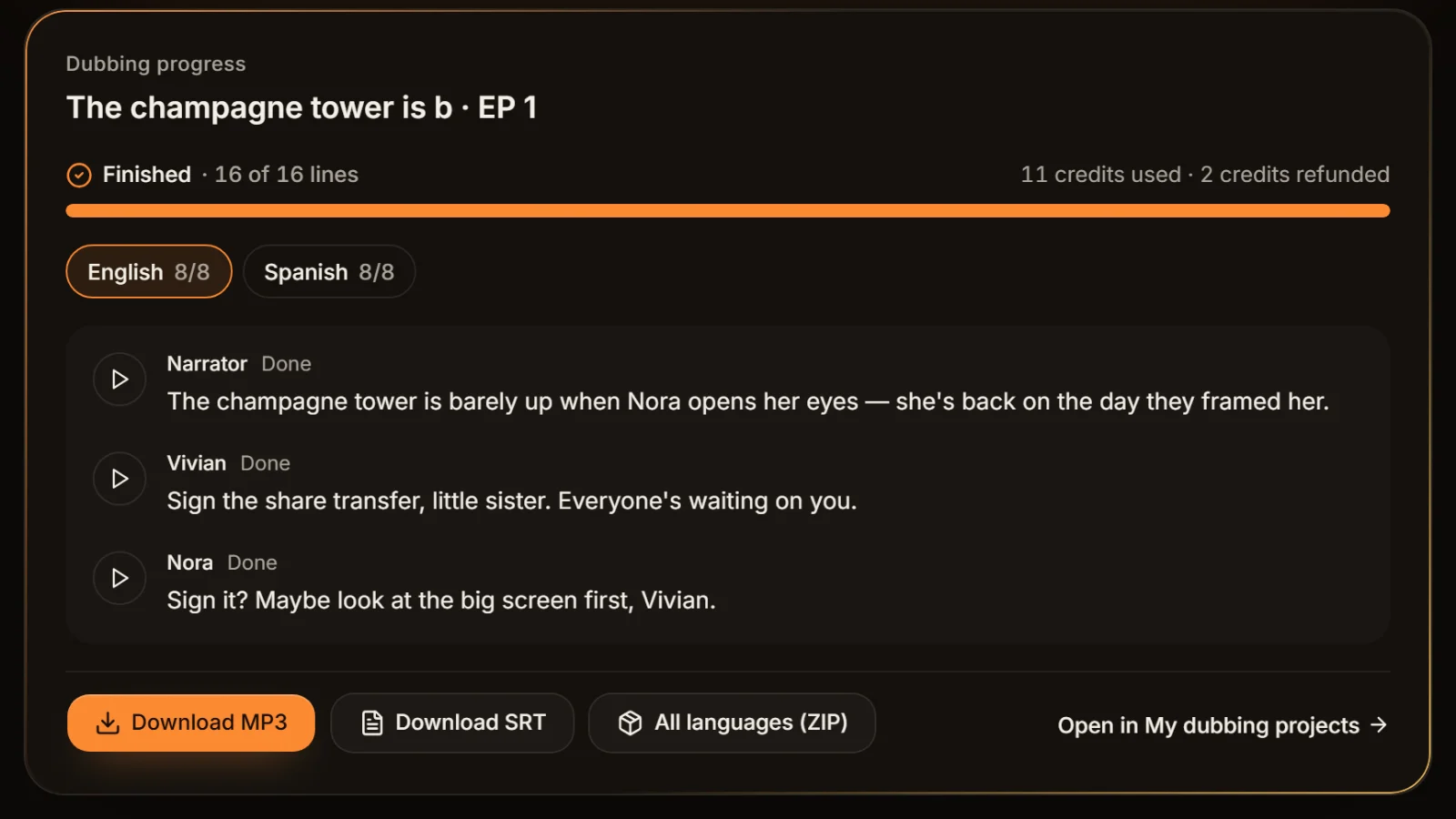
The SRT AI Drama Voice exports comes from the same pass as the MP3: every cue starts and ends where that line sits in the audio. Only these situations call for an SRT time shift.
The MP3 isn't at zero on the timeline
Subtitle times count from the start of the MP3. If you placed the MP3 a few seconds in, give the SRT the same offset, or select the audio and the captions together and drag them in your editor.
Cue 1 starts at 0.35 s
The export leaves about 0.35 seconds before every line, the first one included. Shift earlier by more than that and cue 1 gets clamped to zero; the warning is expected.
An intro or title card was added
Measure its exact length, say 2.5 seconds, and offset everything by +2500 so the subtitles move with the voice.
Don't speed up the dub
Subtitles don't scale when you change the audio speed. For a tighter pace, cut lines and regenerate; if the audio is already sped up, rescue it with the two-point stretch.
You re-dubbed one line
However much longer or shorter the new line is, offset from the next cue by that amount. Swapping a single line is covered in the CapCut sync guide.
Each language has its own SRT
English and Thai timecodes follow their own dubs and differ from the Chinese file. Never shift the Chinese SRT to fit foreign audio; for two languages on screen, pair the files by cue number with the bilingual subtitle merger.
Frequently asked questions
Late subtitles have to move earlier: in this SRT time shift tool choose "offset every cue", enter −3000 ms, check that cue 1 hasn't gone negative in the table, then download. If the first line starts less than 3 seconds in, cue 1 is clamped to zero and flagged.
The video and the subtitles no longer have the same running time, usually because the video was sped up or the subtitles were made for another frame-rate release (25 fps against 23.976 fps, for example). A plain offset can't fix it; the SRT time shift you need is the two-point stretch, with one cue near the start and one near the end, or a preset ratio.
Use "offset from cue N": enter the number of the first cue that is off and the offset. Earlier cues stay put; cue N and everything after it move. Inserted shots, cut scenes and a re-dubbed line of a new length all call for this mode.
No. Only the timecodes change; the text, line breaks and cue order stay as they were. Irregular timestamps, such as a period before the milliseconds, are written out in the standard form.
No. The browser reads the file, and the maths and the download happen on your computer. No AI, no credits and no sign-in are involved.
Yes: after importing, box-select every caption on the track and drag them together until they meet the voice, which works for a rough offset by ear. For an exact millisecond value, shifting only from one line, or a stretch, fixing the SRT here and re-importing is quicker; see the CapCut sync guide.








Skip the retiming: get subtitles made from the dub Timed to the voice, line by line.
Paste an episode, let AI cast it and voice every line, and the exported SRT lands on each line's audio. Cast analysis is free.
Billed by characters generated · Failed runs refunded automatically · Alipay, WeChat Pay and cards