WAV to MP3 Converter, Plus MP3 to WAV for Video Editors
A WAV to MP3 converter does lossy compression: at 128 kbps, a 44.1 kHz stereo WAV shrinks to about one eleventh of its size, and the price is a layer of detail the ear rarely notices, more of it the lower the bitrate goes. Drop WAV, M4A, FLAC, OGG or MP3 files into the tool below, choose a bitrate between 64 and 320 kbps, mono or stereo, and 44.1 or 48 kHz, and convert them in one batch. It also turns MP3 into WAV for editing software, though that direction never makes the audio better. Decoding, converting and zipping all happen in your browser; nothing is uploaded.
- 64–320 kbps
- Mono or stereo
- 44.1 / 48 kHz
- Nothing uploaded
Updated Nov 6, 2026Fact-checked Nov 6, 2026
WAV to MP3
ON DEVICEWAV to MP3: drop your audio, pick bitrate and sample rate
Add several files at once. WAV, MP3, M4A and FLAC usually open fine; OGG depends on the browser. Several results download together as one ZIP.
How to convert WAV to MP3 in four steps
No install and no account. Before you start, decide where the files are going (a listener, an upload form or an editing project), because that decides the format and the bitrate.
- 01
Add your audio
Drag one or more files into the tool, or click to choose them. WAV, MP3, M4A (AAC) and FLAC usually open; OGG depends on the browser; AMR, WMA and NetEase Cloud Music's NCM do not, and the tool names the file it could not read. Up to 50 files per run; each can be up to 200 MB and 60 minutes, half that on phones, which have less memory.
- 02
Choose the output format
For listeners and upload forms, pick MP3. For CapCut, Premiere Pro or another editor where the audio will be cut again, WAV (16-bit PCM) is the safer working copy. MP3 to WAV only repackages the sound in a form editors like, and the tool says so next to the button: it will not sound better.
Tip · Don't bounce a file back and forth. Every MP3 encode throws a little more away.
- 03
Set bitrate, channels and sample rate
Bitrate comes in 64, 96, 128, 160, 192, 256 and 320 kbps (192 by default): higher means bigger and closer to the source. Channels and sample rate start as “same as source”; a voice-only dub can go to mono, and the sample rate can be set to 44.1 kHz for music and podcasts or 48 kHz for video projects. Each file in the list shows its estimated output size before you convert.
- 04
Convert and download
The conversion runs on your own computer or phone, not on a server. Download each result on its own or all of them as one ZIP; a same-format job such as MP3 to MP3 adds -converted to the file name. Listen to one result before you convert the whole batch.
What a WAV to MP3 converter throws away, and why
A WAV file usually holds uncompressed PCM samples at a fixed data rate. MP3 is lossy: it drops the parts of the sound the ear is least likely to miss. That is why WAV to MP3 shrinks files so much, and why MP3 to WAV only makes them bigger.
The arithmetic: sample rate × bit depth × channels
A WAV's data rate is sample rate × bit depth × channels. At 44.1 kHz, 16 bits and stereo that is 44,100 × 16 × 2 = 1,411,200 bits per second, the familiar 1,411.2 kbps; the same settings in mono are half, 705.6 kbps. An MP3's bitrate is set when it is encoded, so a 128 kbps MP3 stores 128,000 bits per second whatever went in. A stereo WAV therefore comes out at about one eleventh of its size, a mono WAV at about one fifth.
| Format and settings | Bitrate | Size per minute |
|---|---|---|
| WAV · 48 kHz · 16-bit · stereo | 1,536 kbps | 11.52 MB |
| WAV · 44.1 kHz · 16-bit · stereo | 1,411.2 kbps | 10.58 MB |
| WAV · 44.1 kHz · 16-bit · mono | 705.6 kbps | 5.29 MB |
| MP3 · 320 kbps | 320 kbps | 2.40 MB |
| MP3 · 192 kbps | 192 kbps | 1.44 MB |
| MP3 · 128 kbps | 128 kbps | 0.96 MB |
| MP3 · 64 kbps | 64 kbps | 0.48 MB |
Which bitrate? Start from where the file is going
There is no universal right bitrate. These are figures that platforms publish, plus our own export setting, as starting points.
| Destination | Published requirement or recommendation |
|---|---|
| MP3 uploaded in Apple Podcasts Connect | Mono 96–128 kbps and stereo 128–256 kbps recommended at 44.1 / 48 kHz; minimums are 32 kbps mono and 64 kbps stereo |
| ACX (Audible's audiobook platform) | Every file a 192 kbps or higher constant-bitrate (CBR), 44.1 kHz MP3; ACX also states that unauthorized text-to-speech or AI narration is not accepted |
| AI Drama Voice dubbing export | 44.1 kHz mono 128 kbps MP3; this is our export setting, not an industry standard |
Sources: Apple Podcasts audio requirements and ACX audio submission requirements. A voice-only dub is clear at 96–128 kbps mono; add bitrate when music sits underneath or the mix is stereo. Going above the source gains nothing: re-encoding a 128 kbps MP3 at 320 kbps makes the file two and a half times bigger and brings back none of the lost detail.
MP3 to WAV: why it doesn't get better, and when to do it anyway
The detail an MP3 encoder discards is no longer in the file. Converting to WAV writes the decoded sound out as uncompressed samples: several times bigger, identical to the ear. It is still worth doing in two cases. Your editor or the platform only takes WAV. Or you will cut and export the audio several times, and a WAV working copy stops each export from stacking another round of MP3 loss on top (generation loss).
Can I just rename the file?
No. Renaming .wav to .mp3 changes the name, not the data inside. Some players sniff the content and play it anyway, but the size stays the same, and an upload form that checks the file format may reject it or fail. A real WAV to MP3 conversion has to re-encode the audio.
M4A to MP3, FLAC, OGG, AMR: what the browser can convert
The tool reads files with your browser's built-in decoder, so what opens depends on the browser you are using. This is the usual picture; when a file won't open, the tool tells you which one.
| Format | Typical source | Opens? | Notes |
|---|---|---|---|
| WAV | Field recorders, studios, editor exports | Usually | Plain PCM is the common case; a few unusual WAV codecs may not open |
| MP3 | Dubbing exports, downloads | Usually | MP3 to MP3 works too, to change bitrate, channels or sample rate |
| M4A (AAC) | iPhone Voice Memos, phone recorders | Usually | M4A to MP3 is one of the most common requests |
| FLAC | Lossless music, some recorders | Usually | Lossless to lossy, so FLAC to MP3 shrinks a lot |
| OGG (Vorbis / Opus) | Game assets, some websites | Depends on browser | Some Safari versions can't; try Chrome, Edge or Firefox |
| AMR, WMA | Old phone recordings, old Windows format | No | Browsers ship no decoder for them |
| NCM | NetEase Cloud Music downloads | No | An encrypted download format, not an ordinary audio file |
Converting sample rate: 44.1 kHz or 48 kHz?
44.1 kHz comes from the CD and is the norm for music and podcasts; 48 kHz is the video and broadcast convention, and most cameras and editing projects use it. Drop a 44.1 kHz dub into a 48 kHz project and the editor resamples it on the fly, usually with no audible difference. If your workflow wants every asset at 48 kHz, convert here first. Going up (44.1 to 48) adds no detail; going down only removes content above about 22 kHz, which a voice doesn't have.
Mono or stereo?
Dubbing, voiceover and audiobook narration are mono by nature. Turning them into stereo copies the same signal to left and right and sounds no better. And an MP3's size follows its bitrate: at 128 kbps a mono file and a stereo file are the same size, but in mono the whole budget goes to one channel. So choose mono for voice, and stereo only when the mix carries stereo music or ambience.
When a platform insists on stereo WAV
Apple Podcasts Connect does not accept single-channel WAV or FLAC: without a stereo source you send two identical channels. Its MP3 uploads take mono or stereo. For a rule like that, choose WAV plus stereo here.
After the dub: when to use the WAV to MP3 converter, or go the other way
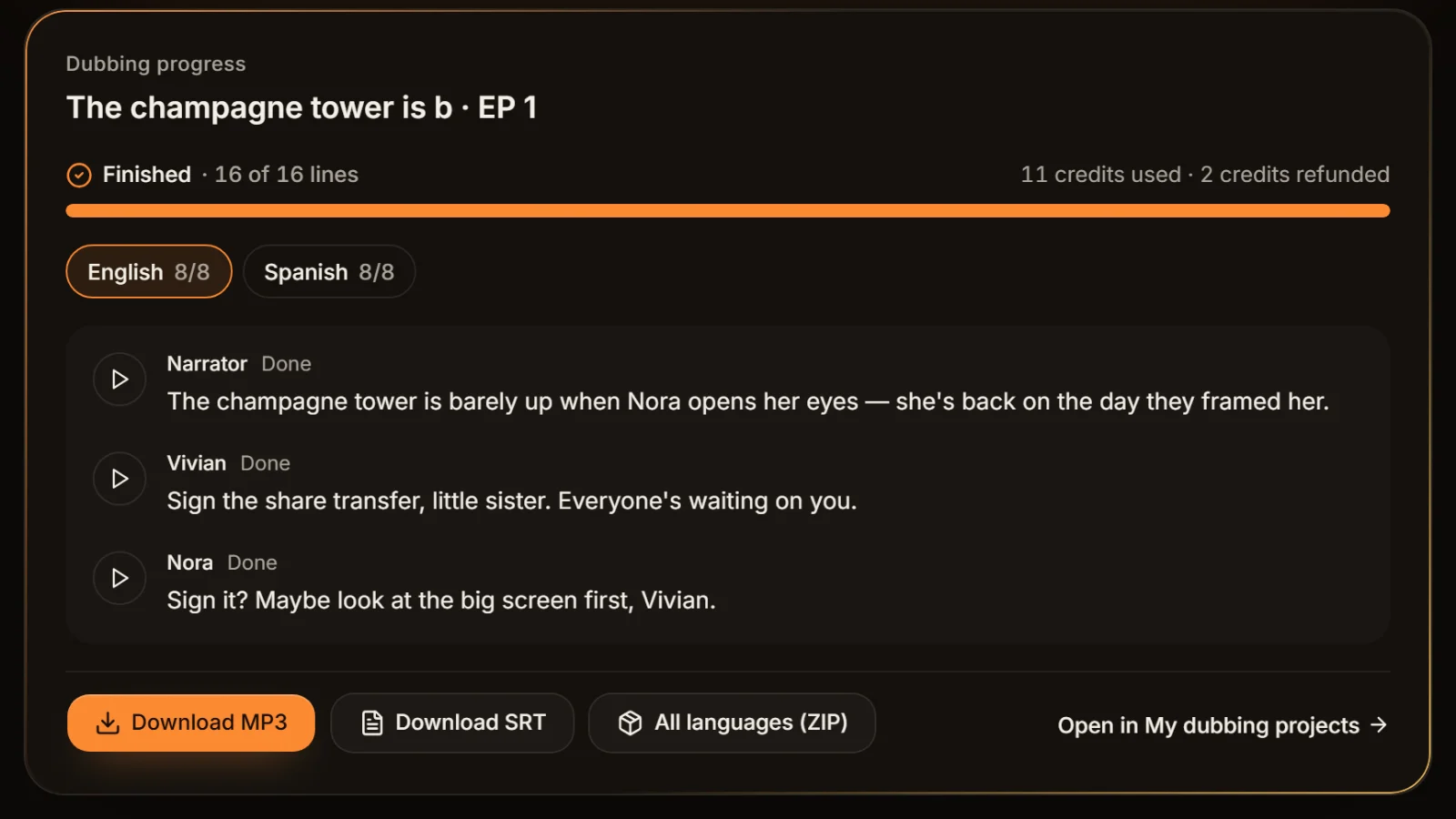
AI Drama Voice exports dubs as 44.1 kHz mono 128 kbps MP3, which works as-is almost everywhere. These are the cases that send you here.
The edit wants 48 kHz WAV
Some editors want every asset as 48 kHz WAV before it enters the project. Convert the batch to WAV at 48 kHz and hand it over; converting does not move the lines (any shift stays within a few tens of milliseconds), so the SRT still fits.
The platform only takes stereo
Pick stereo: the mono voice is copied to both sides and sounds the same. Choose the bitrate from the platform's stereo requirement.
Sending a preview
A listening copy doesn't need a high bitrate. Voice at 96 kbps mono is clear and a quarter smaller than 128 kbps. To go smaller still, use the MP3 compressor.
Episodes sound uneven
Converting does not change loudness. If episodes or languages sound louder or quieter than each other, fix that first with normalize audio volume; it can write MP3 or WAV itself.
You need one long file
To join several episodes into one, use merge MP3 files; each episode's SRT can be joined onto the same timeline.
Keep the first copy
WAV to MP3 to WAV to MP3 loses a little at every MP3 step. Keep the earliest original and convert every other format from it.
Tags don't carry over
Converting re-encodes the audio, so the new file has none of the source file's ID3 tag, including the TXXX:AIGC label our exports write. Add titles, album and cover with the MP3 tag editor, and add the visible AI label your platform asks for when you publish; see AI content labels.
Frequently asked questions
Some, but at a sensible bitrate most people can't hear it. MP3 is lossy and the loss grows as the bitrate drops: voice alone is clear at 96–128 kbps mono, and a mix with music can take a higher bitrate. Keep the original WAV.
No. What the MP3 encoder threw away is not in the file any more, so the WAV is bigger and sounds the same. The point of WAV is that editors read it easily and repeated edits stop adding MP3 loss.
It depends on the destination. Apple Podcasts recommends 96–128 kbps for mono MP3 and 128–256 kbps for stereo; AI Drama Voice exports dubs at 128 kbps mono. A preview can go lower; audiobook and music platforms publish their own requirements, so follow those.
Mono. Stereo only copies the same voice to both sides and sounds no better, and at the same bitrate both files are the same size. Choose stereo when the platform requires it or the mix has stereo music.
For published audio (podcasts, audiobooks, music services) 44.1 kHz is the most common; for a video editing project 48 kHz fits better. For a voice you won't hear a difference, so follow what the next step asks for.
No. The tool uses the browser's own decoder and browsers have none for AMR or WMA. NCM is NetEase Cloud Music's encrypted download format, not ordinary audio. The tool tells you which file failed instead of writing a broken one.
Yes. Drop in several files and the WAV to MP3 converter applies the same bitrate, channels and sample rate to all of them, then zips the results into one download. Everything runs in your browser, with no upload and no sign-in.








Files converted. Let us dub the next episode. Ready-to-use MP3, every language.
Paste a Chinese episode script: AI casts the characters, dubs it line by line and keeps the same cast across 8 languages, with MP3 and SRT exports. Cast analysis is free.
Billed by characters generated · Failed runs refunded automatically · Alipay, WeChat Pay and cards