SRT Editor Online: Fix Subtitles While the Audio Plays
This SRT editor online is built for fixing subtitles by ear. Open an SRT (VTT and ASS also load) together with the MP3 it belongs to, click any cue and playback starts from that line; the current cue stays highlighted as the audio runs, so you can correct text and start and end times while you listen. Keyboard shortcuts snap the current cue's start or end to the playhead, nudge it, split it or merge it, and every change can be undone. Overlaps and odd gaps are marked in red, each cue shows its reading speed, and lines that need a new take can be flagged and exported as a list. Files are processed in your browser and never uploaded.
- Click a cue, hear it
- Snap to playhead
- Undo / redo
- Nothing uploaded
Updated Nov 6, 2026Fact-checked Nov 6, 2026
episode-01.en.srt
UTF-81
00:00:00,400 --> 00:00:06,900
The champagne tower is barely up when Nora opens her eyes — she's back on the day they framed her.
2
00:00:07,100 --> 00:00:11,800
Sign the share transfer, little sister. Everyone's waiting on you.
3
00:00:12,000 --> 00:00:15,700
Sign it? Maybe look at the big screen first, Vivian.
4
00:00:15,900 --> 00:00:22,000
The lights dim. On screen, security footage — Vivian tipping powder into Nora's glass.
5
00:00:22,200 --> 00:00:25,000
Turn it off! Who told you to play that?
SRT editor online: open the subtitles and the dub, then listen cue by cue
Open an SRT, VTT or ASS file first, then the matching episode's MP3 if you have it. Without audio you can still edit text and timing; you just can't hear it. Changes are saved automatically in this browser on this computer.
How to use the SRT editor online in five steps
It works best with the MP3 and SRT of the same episode, for example the two files you download from My dubbing projects.
- 01
Step 1
Open the subtitles and the audio
Open the subtitle file first (SRT, VTT or ASS), then the episode's audio in a format your browser plays, such as MP3. With audio, every cue maps to a stretch of sound and the next steps make sense; for fixing typos alone, you can skip the audio.
- 02
Step 2
Click a cue, hear the cue
Click any cue in the list and playback starts at its start time. While the audio plays, the current cue stays highlighted and moves along with it, so your eyes read the text while your ears check it, and a mismatch stands out at once.
- 03
Step 3
Fix the text and the timing
Type straight into the text. For timing, don't guess numbers: press the shortcut at the instant the voice starts to snap the cue's start to the playhead, and again when it stops to snap the end. Nudge with the keys for the last few milliseconds.
Tip · The full shortcut list is in the "Shortcuts and red marks" section below.
- 04
Step 4
Split, merge, find and replace
Split a long cue while the audio is at the point where it should break: the time is cut at the playhead and the text at about the same proportion, preferably at punctuation. Merge a cue that is too short with the next one (earliest start, latest end). Insert a cue for a missing line, delete one you don't need, and fix a typo or a misspelled name across the whole episode with find and replace. Every step can be undone and redone.
- 05
Step 5
Clear the red marks and export
Work down the red marks for overlaps, cues out of order and gaps that are too short, then look over any cue that reads too fast or runs too long. Flag the lines that need a new take. Then save a UTF-8 SRT (optionally with BOM and CRLF) or a VTT, and export the list of lines to re-dub.
Subtitles out of sync with the audio? First find out which kind
"The subtitles don't match the audio" covers at least half a dozen problems with completely different fixes. Before you touch anything, listen at three points: the first line, one in the middle, and the last.
| What you hear | Likely cause | Tool to use |
|---|---|---|
| Every line early (or late) by the same amount | A logo was added to the intro, or the audio has extra silence at the start | SRT time shift: shift everything |
| In sync at first, drifting further later | The audio was sped up or slowed down, or the frame rates differ | SRT time shift: two-point sync or stretch |
| Everything after one line is off | A stretch of audio was inserted or cut there | SRT time shift: shift from cue N |
| Only a handful of cues are off | Some lines were re-recorded, trimmed by hand, or the cues were re-split | This page: listen and fix cue by cue |
| Timing is right but nobody can read it in time | Too much text in one cue | Subtitle line length: split and slow down |
| The subtitle and the voice say different things | The subtitle is an old draft, or the dub misread the line | This page: fix the text and flag misreads to re-dub |
When you dub with AI Drama Voice, the MP3 and the SRT come from the same render: each cue starts and ends exactly where its line sits in the MP3, so they line up when imported as they are. If they stop matching, something changed afterwards: a line cut in the edit, a line re-recorded, or the subtitles re-split. The first two are time-shift jobs; the last one is fixed here. For importing and aligning in CapCut, see the CapCut sync guide.
Edit subtitles with audio to review a dub: from flag to new take
The editor is built for reviewing dubbed episodes, and its most useful feature is the "needs re-dub" flag. But keep one thing straight: changing a subtitle changes only the subtitle. The audio stays as it was.
What to fix in the subtitles and what to re-dub
| Problem you hear | In the subtitle editor | Re-dub the audio? |
|---|---|---|
| Typo in the subtitle, voice is right | Fix the text | No |
| The script itself had a wrong word | Fix the text | Yes, the voice read the wrong word too |
| A name or a Chinese polyphone read wrong | Leave the subtitle | Yes, respell the word in the script first |
| Wrong emotion: flat where it should sneer | Leave the subtitle | Yes, with a different emotion tag |
| Subtitle appears half a second after the voice | Snap the start | No |
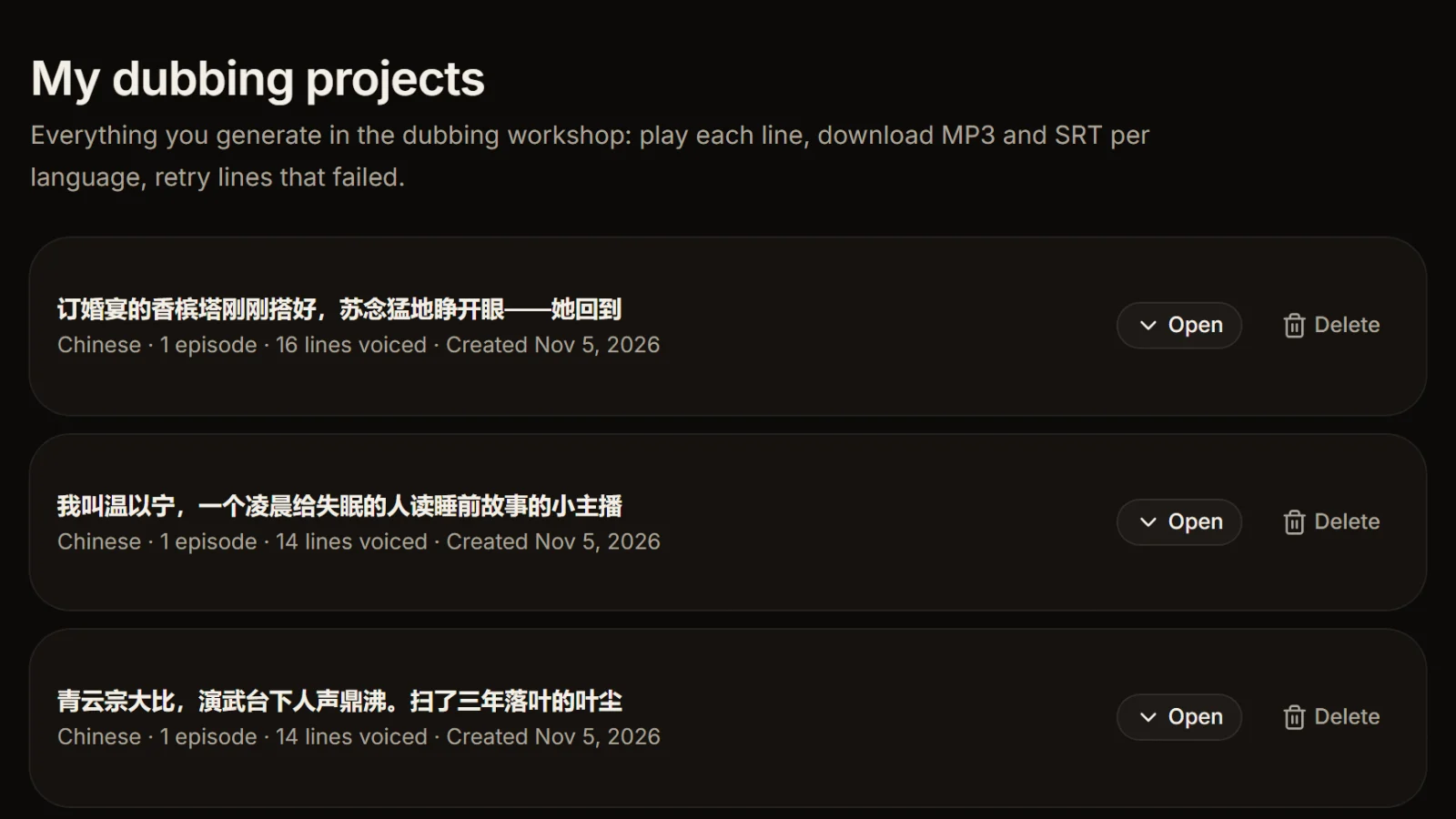
| A line has no audio at all | Leave the subtitle | Retry failed lines in My dubbing projects |
How to re-dub the lines you flagged
The exported list starts with how many lines are flagged and their numbers (say #3, #7, #12), then gives each one's start and end time and its text; if you split, merged or inserted cues, it also notes which cue number the line had in the file you opened. A dubbing SRT has one cue per script line, so that original number is usually the line's position in the episode (off by a few if lines without audio were skipped at export). Open the episode in My dubbing projects, where every line can be played on its own, and check them there. Lines that failed to generate can be retried with one click, and the credits for the failed part are refunded automatically. Lines that generated fine but sound wrong can't be redone on their own inside a project yet: fix them in the dubbing workshop (change the emotion tag or respell the tricky word), paste only those lines and dub them again, set each role back to its original voice in the cast list, then swap the takes in your editing app.
Swapped one take and everything after it shifted?
Replace a line with a longer or shorter take in your editing app and every cue after it moves by the same amount. Fix the replaced cue here first, then move the rest in one go with "shift from cue N" in the SRT time shift tool. That is far quicker than fixing cue after cue.
Shortcuts and red marks
Most of the work in this SRT editor online happens from the keyboard: one hand on the keys, ears on the audio.
| Key | What it does |
|---|---|
| Space | Play / pause |
| Enter | Play the current cue from its start |
| [ | Snap the current cue's start to the playhead |
| ] | Snap the current cue's end to the playhead |
| ↑ / ↓ | Select the previous / next cue |
| Alt + ↑ / ↓ | Nudge the time by ±100 ms |
| Ctrl + Z / Ctrl + Shift + Z | Undo / redo |
| S | Split the current cue at the playhead |
| M | Merge the current cue with the next one |
| R | Mark or unmark the current cue for re-dubbing |
What the red marks mean
- Overlap: this cue starts before the previous one ends, so both sit on screen at once. Pull the previous cue's end back or push this cue's start later.
- Out of order: this cue starts earlier than the one before it. The editor never re-sorts cues on its own; click it, listen once, and decide where it belongs.
- Zero length: the end is not later than the start, so the cue never shows. Usually a slip while editing the time.
- Gap too short: less than 100 ms between two cues makes the subtitle flicker off and on. Either butt the two cues together or open the gap up.
- Too fast, too long: the standard is picked from the text. Chinese cues follow the Netflix Simplified Chinese guide (16 characters a line, two lines, 9 characters a second) and English cues the Netflix English guide (42 characters a line, 20 characters a second), the same presets as the subtitle line length checker. Too fast means viewers can't finish it; shorten the text or keep it on screen longer.
Autosave and export formats
Every change is saved automatically in this browser's local storage (localStorage), so closing the tab loses nothing. Another computer, another browser or clearing your browsing data won't show it, though, so export when you're done. SRT is always UTF-8, with an optional BOM and CRLF line endings for older Windows players; for web players you can save VTT instead. With an ASS file you can edit text and timing but not styling: the editor works on the plain text and saves only SRT or VTT, so styles and override tags are not kept. It warns you, and the subtitle converter page explains what each conversion loses. Undo goes back up to 300 steps, and a burst of typing in one cue counts as one step. Long files of more than 2,000 cues render only the rows on screen, so scrolling stays smooth.
How to edit an SRT file with less rework: six habits
These come from the most common rework when reviewing dubs in the SRT editor online.
Listen at three points before choosing a tool
Check the first line, one in the middle and the last. If all three are off by the same amount, it's a whole-track offset; don't fix it cue by cue here, use the time-shift tool.
Align to the playhead, not to guessed numbers
Pressing the snap key at the moment the voice starts is far more accurate, and far faster, than typing a timecode.
Early beats late
A subtitle can appear with the voice or a touch before it, but not after: viewers who hear a line before they see it feel the whole thing lagging.
Use find and replace for episode-wide typos
A misspelled name or a typo that repeats is fixed everywhere in one go, faster than scrolling and with nothing missed.
Read bilingual cues as a pair
A bilingual SRT has two lines per cue, so reading speed looks high. To split the languages apart or join two files into one, use the bilingual subtitles tool, then come back here for text and timing.
Save the result under a new name
Autosave lives only in this browser on this computer. Export the edited SRT under a new file name and keep the original, so you can compare if something goes wrong.
Frequently asked questions
The easiest way is the SRT editor online on this page: open the file, fix each cue's text and start and end times, and save a new SRT. A plain text editor works too, but then you have to keep the numbering continuous, write timecodes as hours:minutes:seconds,milliseconds and save as UTF-8 yourself, and timing becomes guesswork. The file layout is explained in the SRT format guide.
Yes, that is what this editor is for. Open the subtitles, then the episode's MP3; clicking any cue plays from its start and the current cue stays highlighted. Press the snap keys when the voice starts and stops, and the cue's start and end land on the playhead.
Listen to the first line, one in the middle and the last. All off by the same amount: shift everything with SRT time shift. Drifting further over time: use its two-point sync or stretch. Only a few cues off: fix them one by one here. For CapCut, see the CapCut sync guide.
The end can: drag this cue's end past the next cue's start and the next cue turns red, so you can pull this end back or push the next start later. Moving a start earlier can overlap the previous cue in the same way. Whatever you do, a cue's start never moves past its neighbours' starts, so the order stays intact. Clear the red marks before exporting and you won't get two subtitles stacked on screen in your editing app.
Yes, undo and redo cover everything, including split, merge and find and replace. Changes are also autosaved in this browser, so closing the page loses nothing; they don't sync to other devices, though, so export the file when you're done.
The SRT editor online opens in a phone browser, and you can tap a cue to play it and edit its text and timing. The shortcuts need a physical keyboard, though, and going through a few hundred cues on a small screen is slow. For a full review pass, use a computer.
Yes. Each cue in a bilingual SRT has two lines; edit the text as usual, and timing changes apply to both. Reading speed counts both lines, so it looks high. To split the languages into two files, or to join two single-language files, use the bilingual subtitles tool.






Review done? Redo the flagged lines Listen. Mark. Fix.
Fix those lines in the dubbing workshop and dub them again; lines that failed can be retried in My dubbing projects with the failed part refunded.
Billed by characters generated · Failed runs refunded automatically · Alipay, WeChat Pay and cards