The SRT File Format Explained: Index, Timecode, Text
The SRT file format is the most widely supported sidecar subtitle format: an .srt file is plain text, and every subtitle in it has four parts, in order: an index number, a timecode (hours:minutes:seconds,milliseconds --> hours:minutes:seconds,milliseconds), one or two lines of text, and a blank line. Once you can read those four parts, you can open, check and fix any SRT file in a text editor. This guide goes through the rules for each part, encoding and line endings, a sample laid out the way our dubbing export writes it, the eight errors that most often break an import into CapCut, Premiere Pro or YouTube, and the free tool that fixes each one.
- Annotated example
- 8 common import errors
- A fix tool for each
Updated Nov 5, 2026Fact-checked Nov 5, 2026
episode-01.en.srt
UTF-81
00:00:00,400 --> 00:00:06,900
The champagne tower is barely up when Nora opens her eyes — she's back on the day they framed her.
2
00:00:07,100 --> 00:00:11,800
Sign the share transfer, little sister. Everyone's waiting on you.
3
00:00:12,000 --> 00:00:15,700
Sign it? Maybe look at the big screen first, Vivian.
4
00:00:15,900 --> 00:00:22,000
The lights dim. On screen, security footage — Vivian tipping powder into Nora's glass.
5
00:00:22,200 --> 00:00:25,000
Turn it off! Who told you to play that?
On this page
How to write an SRT file by hand in 6 steps
Few people hand-type subtitles for a whole series, but writing two or three cues yourself makes every rule of the SRT file format stick, and errors become easy to spot later.
- 01
Step 1
Create a plain-text file
Use Notepad on Windows, TextEdit on a Mac switched to plain text (Format → Make Plain Text), or a code editor such as VS Code. Avoid Word: it saves a formatted document, not plain text.

SRT is plain text: write it line by line in a plain-text editor, not in Word.Image: cottonbro studio / Pexels - 02
Step 2
Line one: the index
The first cue is 1, and each cue after it adds one. Players show cues by their timecodes, but some programs reject a file with skipped or repeated numbers.
- 03
Step 3
Line two: the timecode
Write start --> end, for example 00:00:01,000 --> 00:00:03,500. Hours, minutes and seconds take two digits each, milliseconds take three, a comma comes before the milliseconds, and there is one space on each side of the arrow.
- 04
Step 4
Line three onward: the text
Use one or two lines per cue: two is fine for landscape video, one is better for vertical short dramas. Never leave a blank line inside the text, because a blank line ends the cue.
- 05
Step 5
Leave a blank line, then the next cue
Put one empty line after each cue, then the next index. A trailing blank line after the last cue is fine too.
- 06
Step 6
Save as UTF-8 with an .srt extension
Choose UTF-8 in the save dialog and name the file "episode-01.srt". Windows hides extensions by default, so check that you didn't end up with "episode-01.srt.txt": turn on View → Show → File name extensions in File Explorer and look again.
Tip · Drop the saved file into a player or editor to test it; that beats checking by eye.
An SRT file format example, taken apart line by line
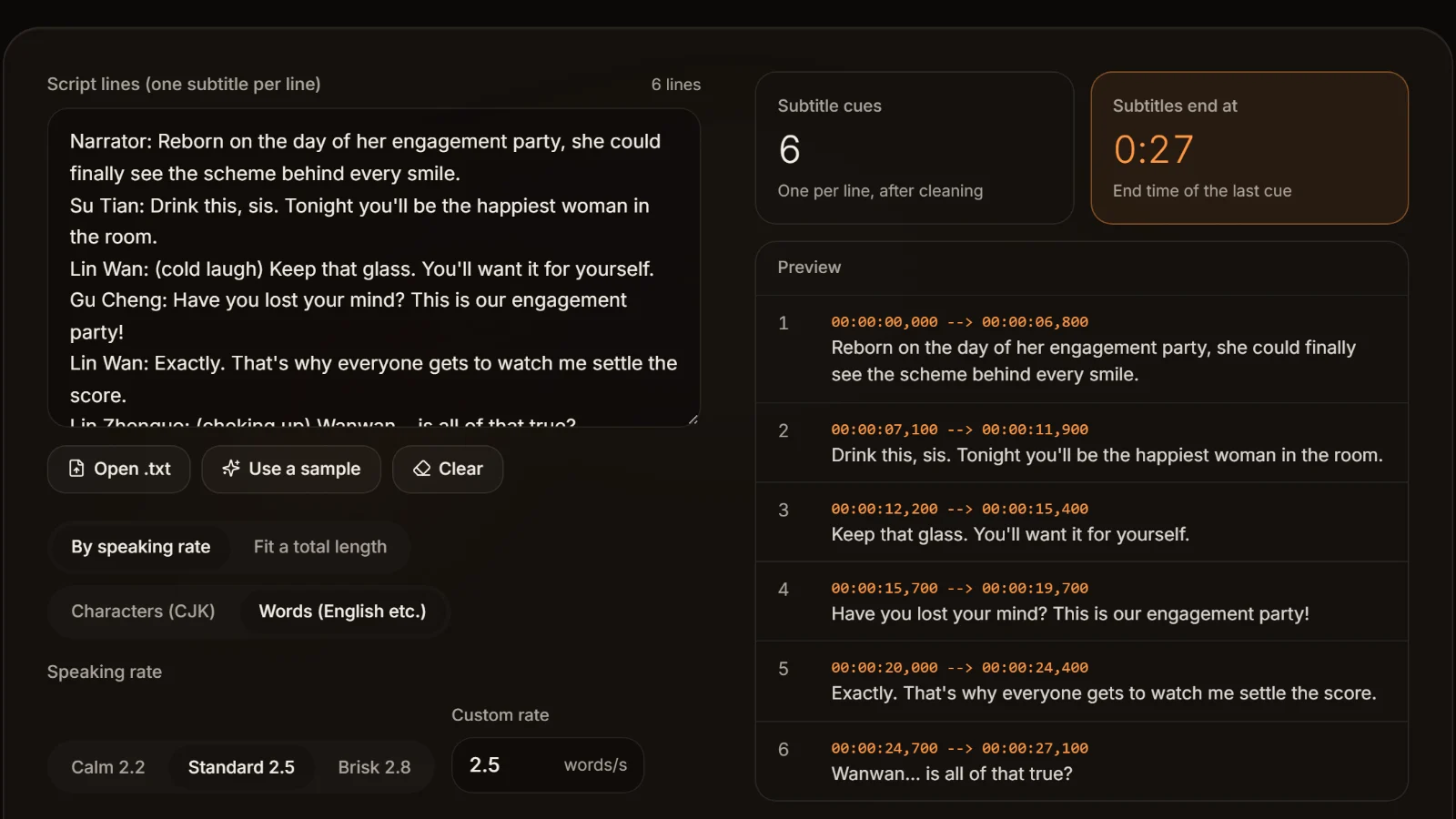
The quickest way to learn the SRT file format is to take a real file apart. These three cues follow the rules AI Drama Voice uses when it exports dubbing subtitles: one cue per script line, the first cue starting at 0.35 seconds, and 0.35 seconds between lines. Cue lengths here are illustrative; in a real file they come from each line's dubbed audio.
| Line | In the file | What it is |
|---|---|---|
| 1 | 1 | Index |
| 2 | 00:00:00,350 --> 00:00:05,980 | Timecode: shown from 0.35 s to 5.98 s |
| 3 | The champagne tower is barely up when Nora opens her eyes — she's back on the day they framed her. | Subtitle text |
| 4 | (blank) | End of this cue |
| 5 | 2 | Next index |
| 6 | 00:00:06,330 --> 00:00:09,410 | Start = previous end + 0.35 s |
| 7 | Sign the share transfer, little sister. Everyone's waiting on you. | Subtitle text |
| 8 | (blank) | End of this cue |
| 9 | 3 | Index |
| 10 | 00:00:09,760 --> 00:00:12,540 | Timecode |
| 11 | Sign it? Maybe look at the big screen first, Vivian. | Subtitle text |
Six rules for the SRT timecode format
- 1.Fixed width: two digits each for hours, minutes and seconds, three for milliseconds. Write 00:00:05,980, not 0:0:5,98.
- 2.A comma before the milliseconds. A period (00:00:05.980) is WebVTT style, and many editors will refuse it in an SRT.
- 3.The arrow is two hyphens and a greater-than sign (-->), with one space on each side.
- 4.The start must come before the end.
- 5.A cue should not start before the previous one ends. When cues overlap, many players stack both on screen at once.
- 6.Cues run in time order, and the index order matches it.
The name comes from SubRip, a program that read subtitles off DVD video frames and wrote them out as this text format. There has never been an official specification, so tolerance varies: media players often accept a one-digit hour or a period before the milliseconds, while editors and video platforms are more likely to reject the file. Follow these six rules and every program will read it.

Subtitle text: how many lines, and can it be styled?
Keep a cue to two lines at most, and to one for vertical short dramas; for line widths and splitting long cues, see the subtitle line length checker. Many players honour the HTML-style tags <i>, <b>, <u> and <font color="#ffff00">, and some accept {\an8} borrowed from ASS to move a line to the top of the frame, but none of this works everywhere: YouTube's help page says it ignores styling in SRT. If you need set fonts, colours and positions, use ASS instead.
Encoding and line endings: the two things people forget
Nothing in an SRT file says which encoding it uses, so the program reading it has to guess. UTF-8 is the safe choice, especially for Chinese, Thai or any non-Latin script; a file saved in GBK or Big5 can turn to gibberish on another machine or in another program. A UTF-8 file may begin with a BOM (byte order mark), which helps older Windows software recognise UTF-8, though a few old programs read the BOM as part of the first index and drop the first cue. Line endings come as Windows CRLF or Mac and Linux LF; mainstream software reads both, and only a few old Windows programs insist on CRLF.
What an AI Drama Voice SRT looks like
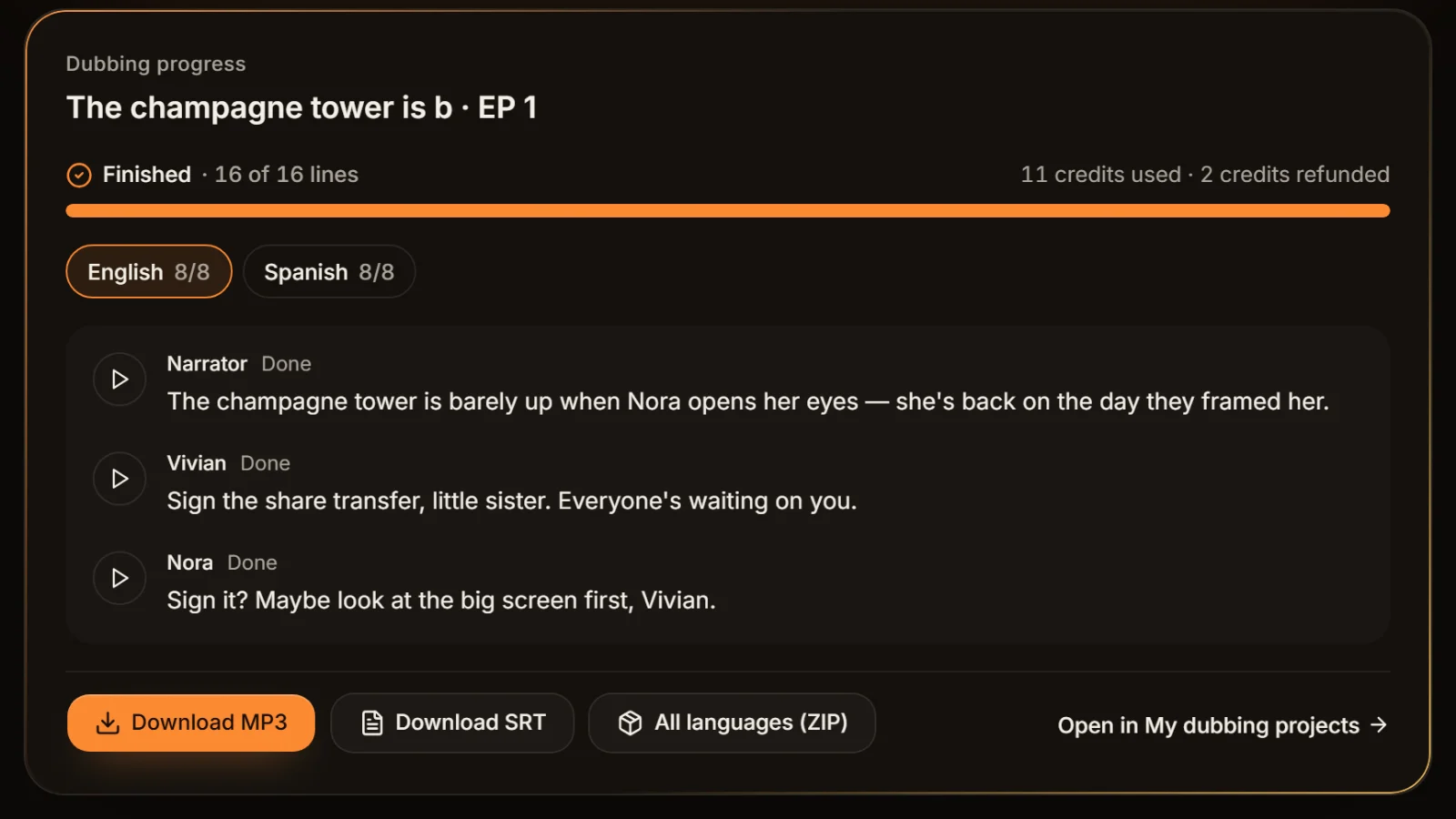
UTF-8 with a BOM, CRLF line endings, one cue per script line, a single line of text per cue and no styling tags. Files are named like "title.en.srt", with the language code before the extension. CapCut and Premiere Pro read them as they are.
How to open an SRT file: read it, play it, edit with it
What opens an SRT file depends on what you want from it. It is plain text, so any text editor shows it; to see it with the video, use a media player or a video editor.
| To | Open it with | Note |
|---|---|---|
| Read or edit the text | Notepad, TextEdit in plain-text mode, VS Code | Don't edit and re-save in Word; it breaks the format |
| Watch it with the video | VLC, PotPlayer or another media player | Name it like the video and keep both in one folder, and it usually loads automatically; or drag it onto the player window |
| Edit a vertical or landscape cut | CapCut, Jianying, Premiere Pro | Import steps for CapCut and Jianying: the CapCut sync guide |
| Publish on a video platform | The platform's caption upload | YouTube accepts SRT in basic form and plain UTF-8 (see YouTube Help) |
If double-clicking an .srt does nothing, or opens some unexpected program, the system simply has no default app for .srt. Right-click, choose Open with, and pick a text editor or your player. If the text editor shows gibberish, the file isn't UTF-8; convert it with the garbled subtitle fixer first.
SRT vs VTT, plus ASS
SRT and VTT differ mainly in how time is written and whether position can be set; ASS is a different kind of format, built for styling and effects. For converting between them and what each conversion loses, see the subtitle format converter.
| Feature | SRT | VTT (WebVTT) | ASS |
|---|---|---|---|
| Timecode | 00:01:02,500 | 00:01:02.500 | 0:01:02.50 |
| File header | None | First line must be WEBVTT | [Script Info] and other sections |
| Cue numbers | On every cue | Optional | None; each cue is a Dialogue line |
| Fonts and colours | Barely | Limited | Yes |
| Position on screen | No | Set with cue settings | Yes |
| Typical use | Editors, players, platform uploads | HTML5 web players | Fansubs, styled subtitles |
| Upload to YouTube | Yes | Yes | No |
Checked Nov 2026 · The YouTube row follows the formats listed on its help page: SRT and WebVTT are listed, ASS is not.
Sources:YouTube Help: Supported subtitle and closed caption filesW3C: WebVTT specification
8 common SRT import errors and how to fix them
When an SRT won't import into CapCut or Premiere Pro, or a platform rejects it, the cause is almost always one of these eight, usually a file that breaks one rule of the SRT file format. Find your symptom in the first column, then use the free tool next to it.
| Symptom | Cause | Fix |
|---|---|---|
| Chinese or accented text shows as gibberish or question marks | The file isn't UTF-8 (often GBK, Big5 or Windows-1252) | Garbled subtitle fixer: convert to UTF-8, then import |
| Every subtitle is a few seconds early or late | Seconds were added to or cut from the start of the video | SRT time shift: move everything at once |
| Right at the start, drifting further later | Frame-rate mismatch (such as 23.976 vs 25), or timing that was estimated | SRT time shift: stretch between two sync points |
| "Invalid format" and not a single cue loads | A period before the milliseconds, missing digits, or a malformed arrow | Fix it by the six rules above, or run it through SRT time shift with a 0 ms offset to get normalised timecodes |
| Everything breaks from one cue onward | A blank line inside a cue's text, or a missing blank line between cues | Find that cue in a text editor and remove or add the blank line |
| The editor can't even see the file | It is really called "episode-01.srt.txt" | Show file name extensions and delete the trailing .txt |
| Lines too long, wrapping to three rows on a phone | Too much text in one cue | Subtitle line length checker: split long cues in one click |
| The platform won't take .srt, or you need styling | It wants VTT, or the job needs ASS | Subtitle format converter: convert to the target format |
Three more jobs come up often: for dual-language subtitles, merge two SRT files into one with the bilingual subtitle merger; for a plain transcript, strip the numbers and timecodes with SRT to TXT; and if you only have a script and no SRT at all, TXT to SRT builds a first timing draft.
Dubbing subtitles: avoid timing problems at the source
An SRT timed from word counts will always drift from the real voice. Dub the script in the AI Drama Voice workshop and each exported cue starts and ends exactly where that line sits in the MP3; start the MP3 and the SRT at the same point in your editor and the subtitles are in sync.
6 habits for working with SRT files
The SRT file format itself is simple; trouble usually comes from repeated edits and re-saves. These six habits avoid most of it.
Keep the original before you change anything
Whether you are changing encoding, timing or format, copy the original first. You can always go back, whereas a garbled file re-saved in the wrong encoding often can't be rescued.
Edit subtitles in a plain-text editor only
Notepad and VS Code leave your format alone. Word and similar processors add formatting and curly quotes, and the saved file often won't load.
Check the start, middle and end
Load the file in a player or editor and look at the first cue, one in the middle and the last. If all three are right, the whole file almost always is.
One spoken line per cue
Don't put two characters' lines in one cue. With one line per cue, as in dubbing subtitles, it's easy to change or replace a single line later.
Put the language code in the file name
In multilingual projects, name files like "episode-01.en.srt" and "episode-01.th.srt" so nobody imports the wrong language.
Leave bulk timing changes to a tool
Moving several hundred cues by 2 seconds by hand always misses some. Do it in one pass with SRT time shift, then spot-check a few.
Frequently asked questions
An SRT file is a sidecar subtitle file in plain text with the .srt extension. In the SRT file format each subtitle is an index, a start --> end timecode, the text and a blank line. It comes from the SubRip program, and nearly every player, video editor and video platform supports it.
To read the text, any text editor: Notepad, TextEdit in plain-text mode or VS Code. To watch it with a video, a player such as VLC or PotPlayer, which usually loads it automatically when it has the video's name and sits in the same folder. To edit, import it into CapCut or Premiere Pro.
As hours:minutes:seconds,milliseconds --> hours:minutes:seconds,milliseconds, for example 00:01:02,500 --> 00:01:05,200. Two digits for hours, minutes and seconds, three for milliseconds, a comma before the milliseconds, one space each side of the arrow, and a start earlier than the end.
A VTT file must start with WEBVTT, uses a period before the milliseconds, may omit cue numbers and can position text with cue settings. SRT uses a comma, numbers every cue and carries almost no styling. HTML5 web players use VTT; video editors generally take SRT. The subtitle format converter turns one into the other.
Usually because the encoding isn't UTF-8 (gibberish), the timecodes are irregular (a period before the milliseconds, wrong digit counts), a cue's text contains a blank line, or the file is really .srt.txt. The error table on this page lists eight symptoms with the tool that fixes each.
Barely. Many players honour <i>, <b> and <font color>, but editors and platforms may not, and YouTube's help page says it ignores styling in SRT. For set fonts, colours and positions, use ASS, or style the subtitle track in your video editor.








Skip the hand-typed timecodes Timecodes from the voice itself.
Paste an episode and AI casts and voices every line; each language exports an MP3 and an SRT timed line by line. Cast analysis is free.
Billed by characters generated · Failed runs refunded automatically · Alipay, WeChat Pay and cards