SRT to TXT: Strip Numbers and Timecodes, Keep the Text
SRT to TXT conversion removes the cue numbers, timecodes and blank lines from a subtitle file and leaves only the dialogue. Drop one or more .srt files into the tool below (.vtt and .ass work too) and choose one of four outputs: plain lines, lines with their start time, text merged into paragraphs, or a CSV with number, start, end and text columns. Styling tags such as <i> are cleaned out, speaker prefixes can stay or go, and the result downloads as a TXT file or copies straight into Word. Files are processed in your browser and never uploaded.
- Plain or timestamped
- Paragraphs or CSV
- Batch files
- Nothing uploaded
Updated Nov 5, 2026Fact-checked Nov 5, 2026
episode-01.en.srt
UTF-81
00:00:00,400 --> 00:00:06,900
The champagne tower is barely up when Nora opens her eyes — she's back on the day they framed her.
2
00:00:07,100 --> 00:00:11,800
Sign the share transfer, little sister. Everyone's waiting on you.
3
00:00:12,000 --> 00:00:15,700
Sign it? Maybe look at the big screen first, Vivian.
4
00:00:15,900 --> 00:00:22,000
The lights dim. On screen, security footage — Vivian tipping powder into Nora's glass.
5
00:00:22,200 --> 00:00:25,000
Turn it off! Who told you to play that?
SRT to TXT: drop subtitles, pick an output
Drop several .srt, .vtt or .ass files at once. The preview updates as you change options; download a TXT or copy the result in one click.
How the SRT to TXT converter works, in four steps
No install and no video needed. The first time, drop in one file and click through the four outputs to see the difference.
- 01
Drop in one or more subtitle files
It reads .srt, .vtt and .ass, several at a time. A BOM, CRLF or LF line endings and missing cue numbers don't get in the way.
- 02
Choose the output
Plain lines: one cue per line. With start time: each line begins with its cue's start time, so you can find it in the video. Paragraphs: short cues joined into running text, split at sentence-ending punctuation or at pauses longer than the gap you set. CSV: number, start, end and text columns for any spreadsheet.
Tip · For rewriting or dubbing, take plain lines; for an editor or a translator to check against the video, take timestamps or CSV.
- 03
Tick the clean-up options
Italic and colour tags and ASS positioning such as {\an8} are removed by default. Speaker prefixes like "Nora:" can be stripped or kept, and identical repeated lines from rolling captions can be collapsed. A cue split over two lines is joined with a space in English and without one in Chinese.
- 04
Download or copy
One file downloads as a .txt. Several files can become one combined TXT or one TXT each in a ZIP. To paste into Word or a chat window, just copy.
What an SRT to TXT conversion actually removes
SRT is plain text: every cue is a number, a timecode, the text and a blank line. To extract text from SRT, everything except the text goes.
| Part | In the file | After SRT to TXT |
|---|---|---|
| Cue number | 12 | Removed |
| Timecode | 00:00:41,200 --> 00:00:44,050 | Removed (the timestamp output keeps the start only) |
| Text line 1 | <i>You think this engagement party | Text kept, <i> removed |
| Text line 2 | was thrown for you?</i> | Joined: You think this engagement party was thrown for you? |
| Blank line | (empty) | Removed |
Tags and clutter, and what happens to them
| You may find | What it is | In the text output |
|---|---|---|
| <i>…</i>, <b>…</b>, <u>…</u> | Italic, bold, underline; many players honour them | Tags removed, words kept |
| <font color="#ffff00">…</font> | Font colour, common in fan subtitles and converted files | Tags removed, words kept |
| {\an8} | ASS-style position override; an8 puts the line at the top centre | Removed |
| {\pos(…)}, {\fad(…)} and similar | ASS position and fade effects | Removed |
| Nora:, [Narrator] | Speaker prefixes | Optional: strip or keep |
| The same words in several cues in a row | Typical of rolling auto-captions | Optional: de-duplicate |
Four outputs of the SRT to text converter, and what each is for
| Output | What you get | Good for |
|---|---|---|
| Plain lines | One cue per line, no times | Rewriting, dubbing scripts, proofreading |
| With start time | Each line opens with its cue's start time | Finding lines in the edit, review notes |
| Paragraphs | Short cues joined, split at sentence ends or long pauses | Archives, articles, sharing the full text |
| CSV | Number, start, end and text columns | Translation sheets, line-by-line checks, counting cues |
Paragraph mode exists because a sentence is often spread over two or three cues: "Sign the share transfer," and "little sister." are separate cues in the SRT and one sentence once merged. Set the pause threshold too low and almost every cue becomes its own paragraph; too high and the episode turns into one block. Start around 1.5 to 2 seconds and adjust from the preview.
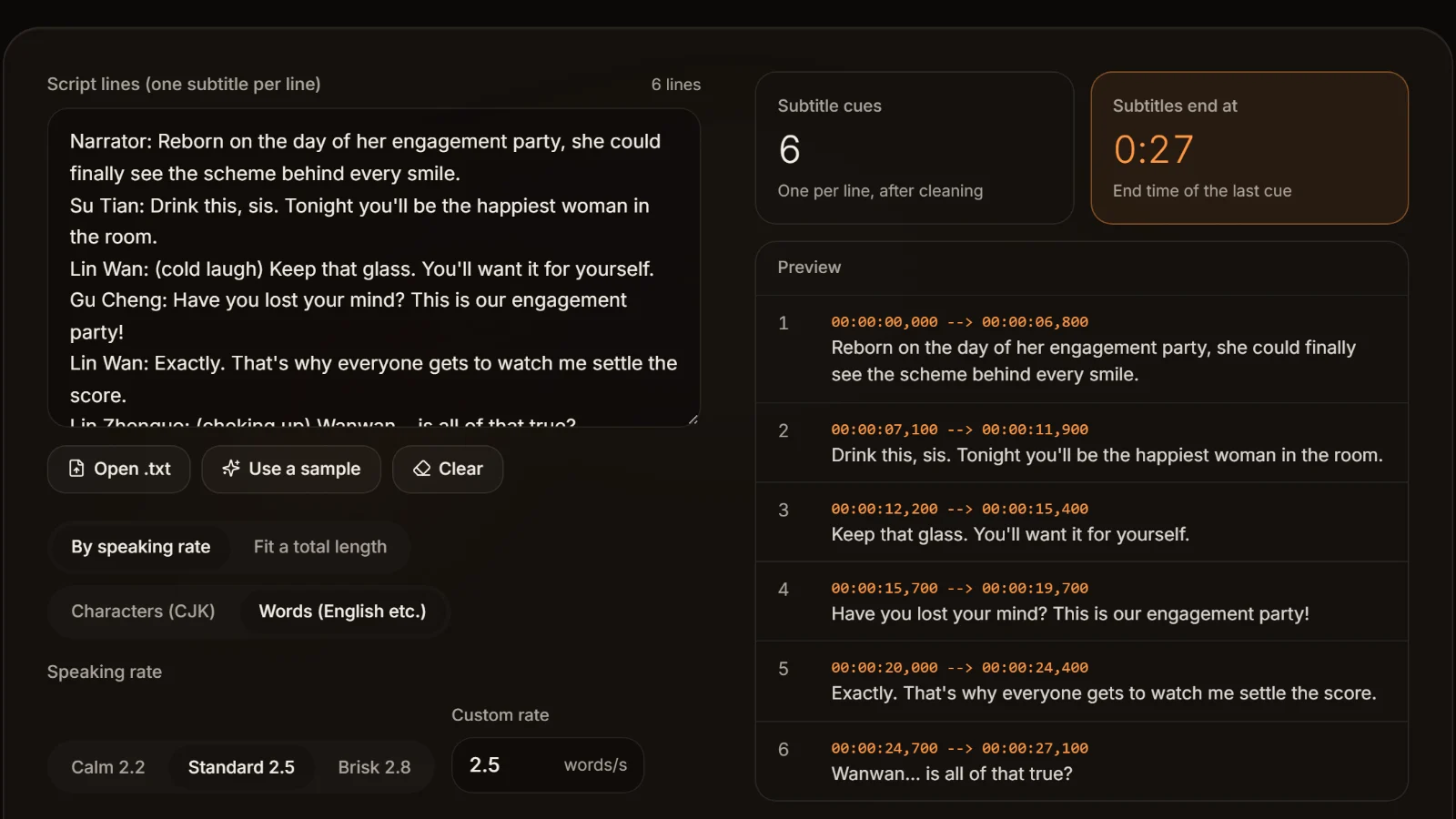
SRT to Word or Excel without a special converter
Word and Excel both read plain text, so the trick is to turn the subtitles into clean text first, not to hunt for a tool that writes .docx.
- 1.An editable script: choose plain lines, copy, and paste into a new Word document. Or download the .txt and open it from Word; if Word asks which encoding to use, pick UTF-8.
- 2.A review copy with times: choose the start-time output and paste it into Word; reviewers write notes after each line and the editor jumps to that time.
- 3.A table: choose CSV and open it in Excel for four columns. To get it into Word, paste the text and use Insert → Table → Convert Text to Table with commas as the separator.
- 4.A whole season: drop every episode's SRT at once and merge them into one TXT, or keep one file per episode in a ZIP.

Garbled Chinese when Excel opens the CSV
Excel on Windows often reads a UTF-8 CSV without a BOM in the local legacy encoding, which garbles Chinese, Thai or accented text. Tick "with BOM" when you download the CSV, or import it via Data → From Text/CSV and choose UTF-8 as the file origin.
Garbled text means the source file is the problem
If the preview itself shows strings like "浣犲ソ" or "���", the original SRT isn't UTF-8 or was saved wrongly at some point. Fix it first with the garbled SRT fixer, which lets you pick the encoding that reads correctly and save UTF-8, then come back for the SRT to TXT step. If the preview is fine and only another program shows garbage, that program didn't recognise UTF-8: download again with a BOM.
To change format while keeping the timecodes (SRT to VTT, ASS to SRT), use the subtitle format converter instead; this page drops the times on purpose.
Three common uses once you extract text from SRT
Rewrite it as a recap script
Turn the subtitles into plain lines or paragraphs and rewrite them as your own narration. If the dialogue comes from someone else's show, check what the licence allows before you publish.
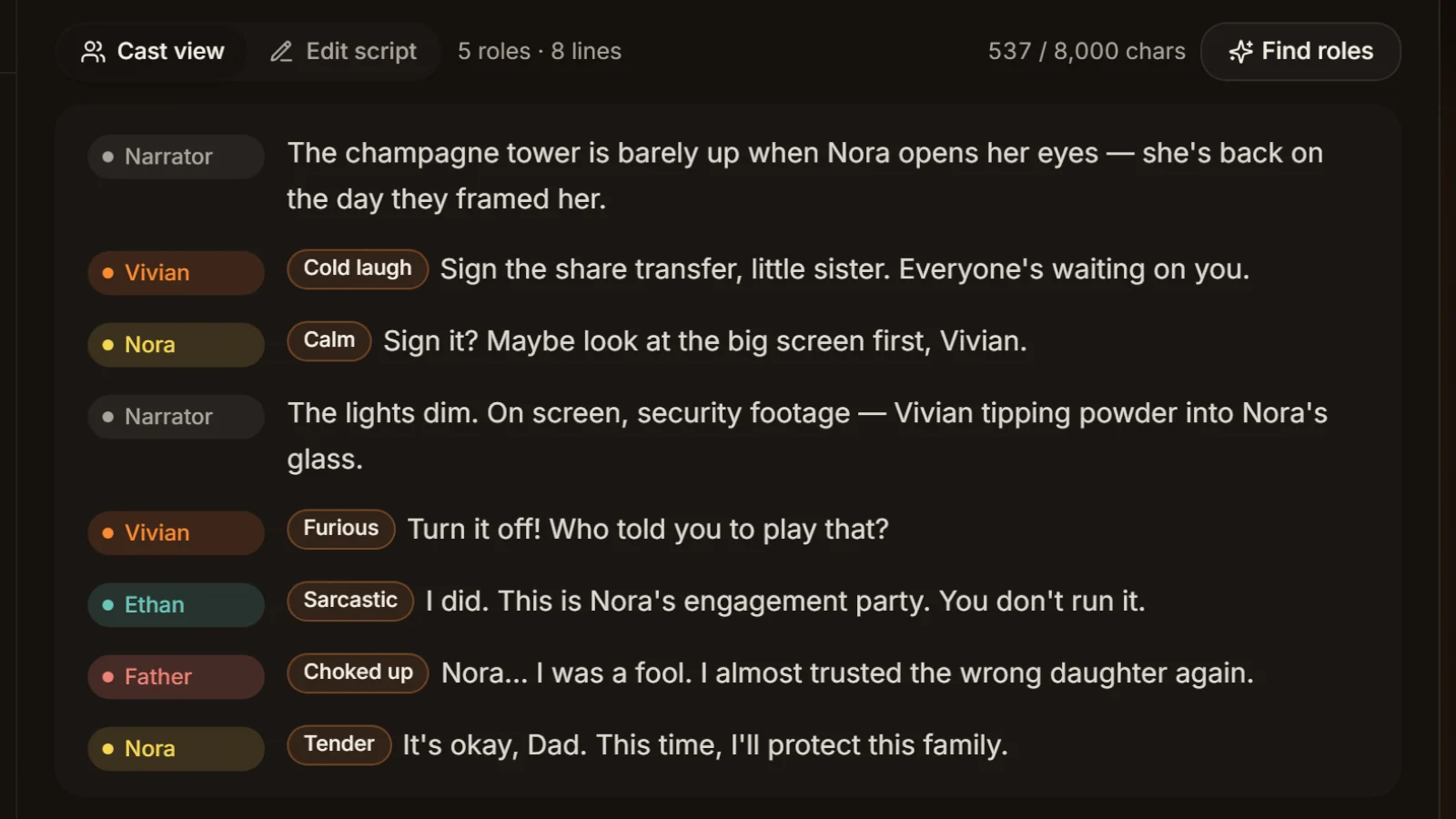
Prepare a dubbing script
Take Chinese subtitles as plain lines, add a "Name:" prefix to each, and paste them into the workshop: the same cast voices them in English, Thai, Indonesian and five more languages, with an SRT timed to the new audio.
Proofreading and translation hand-off
Export CSV and add a "revised" or "translation" column. Reviewers and translators work cue by cue, the numbers and timecodes stay aligned, and the changes go back by cue number.
Five things to decide before you convert
Keep or drop speaker names
Keep them, or add them back, if the text is going to be dubbed: the workshop casts by "Name: line", and rows without a name become narration. For a reading copy, drop them.
Our exported SRT has no names
Each cue in an AI Drama Voice SRT holds only the spoken line, without speaker or emotion. If you need the cast, go back to the original script rather than reverse-engineering the subtitles.
Split bilingual files first
A cue with one Chinese and one English line would come out mixed. Split it into two files with the bilingual subtitle tool, then convert each.
De-duplication only touches neighbours
It is meant for rolling captions. A line the characters genuinely repeat, like a name shouted twice, will also collapse if it sits in two adjacent cues, so skim the result.
Text can't fix timing
SRT to TXT keeps only words. If the subtitles are out of sync, retime the SRT with the SRT time shift tool; once it is text, there are no times left to fix.
Frequently asked questions
Drop the .srt into this SRT to TXT converter and choose plain lines: numbers, timecodes and blank lines go, one cue per line. Styling tags are removed by default and speaker prefixes are optional. Then download the .txt or copy it.
Yes. The start-time output puts each cue's start time in front of its line; for both start and end, choose CSV, which has number, start, end and text columns.
Yes. Drop several files together and either merge them into one TXT or download one TXT per file in a ZIP, which is handy for turning a whole season into scripts.
You don't need a .docx converter: paste the plain text into Word or open the .txt from Word. For a table, export CSV and use Word's Convert Text to Table with commas as the separator.
If the preview already shows strange characters, the source file has the wrong encoding: convert it to UTF-8 with the garbled SRT fixer first. If the preview looks right and only Excel or an older program garbles it, download again with a BOM.
Yes. Add a "Name:" prefix to each Chinese line and paste them into the workshop; it casts the characters, tags emotions and voices them in English, Thai, Vietnamese and more. The new SRT follows the new audio, not the old subtitle times.








You have the lines. Now give them a voice Same lines, eight more languages.
Paste the cleaned-up Chinese lines into the workshop: AI casts the characters, tags every line's emotion and voices them in eight foreign languages. Cast analysis is free.
Billed by characters generated · Failed runs refunded automatically · Alipay, WeChat Pay and cards