Split Audio by SRT Subtitles: One Clip per Line
To split audio by SRT, the tool takes the start and end time of every subtitle cue as cut points and turns one long recording into one file per line. Add an episode MP3 and its SRT (or VTT), and it cuts them in order, nudges each cut to the quietest spot nearby, keeps 100 milliseconds of padding either side by default, names each file with a number and the start of the line, adds a CSV manifest, and packs the lot into a ZIP. With no subtitles, it can split on silence or into fixed-length chunks. The audio is never uploaded.
- By subtitles, silence or length
- Cuts snap to silence
- Number + line in the name
- CSV manifest + ZIP
Updated Nov 6, 2026Fact-checked Nov 6, 2026
Split audio by subtitles
ON DEVICESplit audio by subtitles: add audio and SRT, download a ZIP
Add the episode audio and its SRT / VTT; the tool lists every clip with its file name, start time and length, and each one can be played or saved on its own. With audio only, switch to split by silence or by fixed length.
How to split audio by SRT in four steps
On your first go, press Load example to see what the clips look like, then swap in your own files.
- 01
Add the audio and the subtitles
Audio can be MP3, WAV, M4A or anything else your browser decodes, up to 200 MB and 60 minutes per file (half that in a phone browser). Subtitles can be SRT or VTT, and ASS and LRC are read too. The subtitles must come from the same export as the audio, or the times won't match.
- 02
Choose how to split
With subtitles added, split by subtitles: one file per cue. Without them, split by silence, which cuts at pauses (minimum silence 0.6 seconds by default, adjustable). For a long recording you just want in equal parts, split by fixed length, 30 seconds by default, with each boundary moved to a quiet spot nearby.
- 03
Set padding, snapping and offset
Padding before and after each clip is 100 milliseconds by default, adjustable from 0 to 500, so the first consonant and the trailing sound aren't clipped. Snapping is on by default and moves each cut to the quietest spot within ±150 milliseconds. When you split an MP3 by subtitles, the tool also fills in an offset of a few tens of milliseconds; the reason is below.
Tip · If the gap between two lines is narrower than two paddings, the cut goes exactly in the middle of the gap, so a larger padding never pulls in the neighbouring line.
- 04
Pick a format and download
Export MP3 (64–320 kbps) or lossless WAV. Play or save any clip on its own, or download everything at once: the ZIP holds every clip plus a manifest.csv.
When you split audio by SRT, the subtitles decide the accuracy
A tool that splits by subtitles only cuts where the times say. Whether those times are right depends on where the SRT came from.
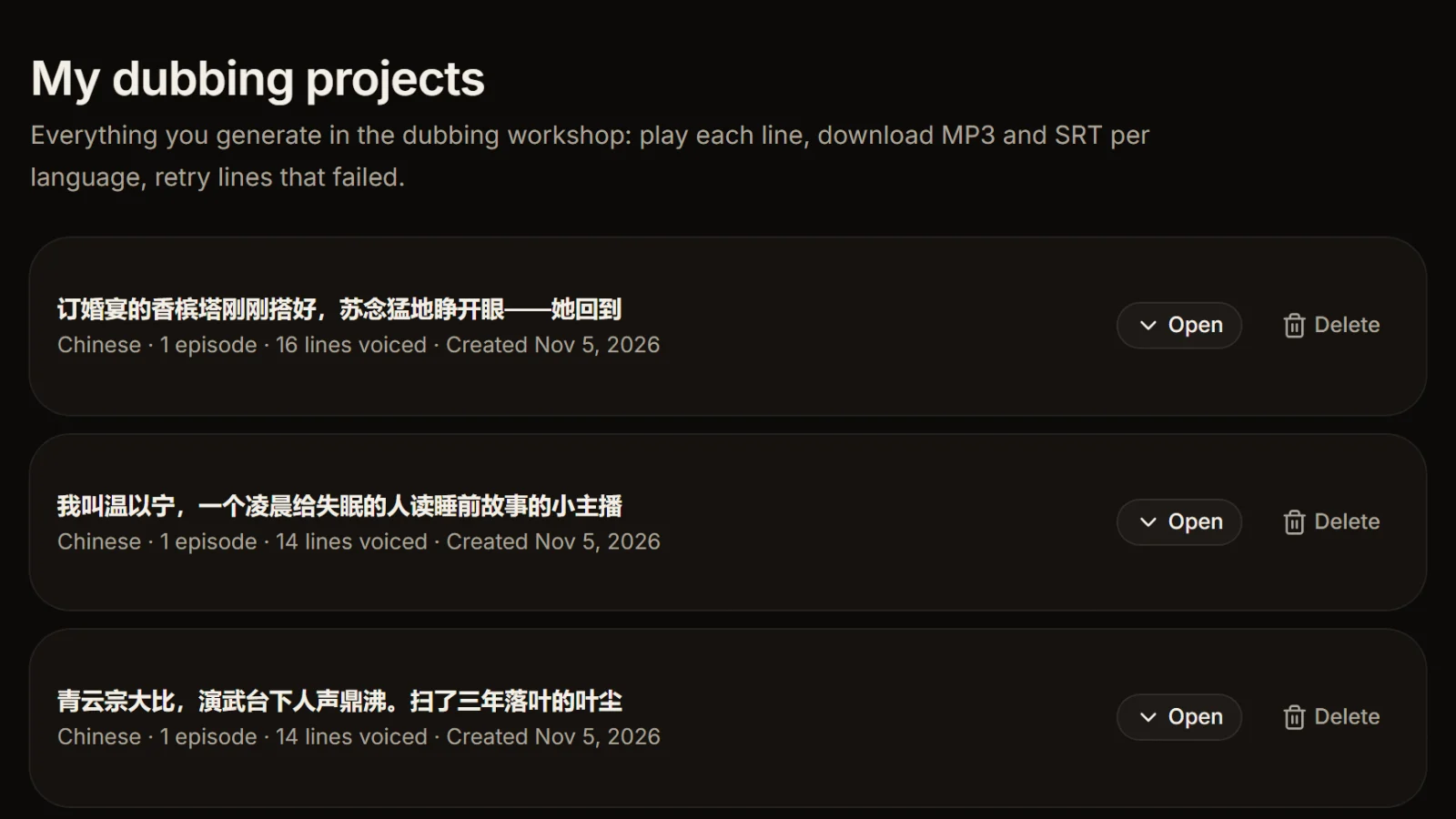
The AI Drama Voice workshop builds its MP3 by joining each line's audio in order, with a fixed 0.35 seconds of silence before every line, and writes the SRT in the same pass. Each cue's start and end are exactly where that line's sound begins and ends in the MP3. Split by that SRT and every cut falls in the gap between lines, one line per file, with no clipped words.
Estimated subtitles won't cut cleanly
Subtitles timed by speaking rate in TXT to SRT are estimates from word counts and can be hundreds of milliseconds or more away from the real voice. Cut audio with them and the cuts land mid-word, with the end of one file carrying the start of the next line. To split audio by subtitles, use subtitles that match the sound line for line: exported with the dub, or synced by hand in an editor.
Where the few-millisecond offset comes from
MP3 encoding and decoding both add a short delay at the start. We measured it on 2026-11-06 in Chromium: an MP3 exported from this site (no LAME header) decodes with 1,105 extra samples in front, about 25 milliseconds at 44.1 kHz, while MP3s that carry a LAME / Info header have that delay removed by the browser. So the tool checks for the header and, if it's missing, shifts the subtitle times about 25 milliseconds later; if it's there, it shifts nothing. You can also set the offset by hand, from −1000 to +1000 milliseconds, for example when the subtitles were early to begin with.
Cue numbers follow the export, not the script
Cues 1, 2 and 3 in the SRT are lines 1, 2 and 3 in the MP3. The workshop only exports lines that generated successfully, so if a line failed and wasn't regenerated, every number after it drifts away from the script's line numbers. Regenerate failed lines in the workshop first (failed lines are refunded automatically), then export again.
No character names in the file names
SRTs exported from this site carry the dialogue only, with no 'Nora:' prefix, so split files are named by number and text and don't say who speaks. To sort them by character, put the CSV manifest and the script side by side in a spreadsheet and match them in order; the script line counter shows how many lines each character has. If your subtitle text already starts with a name and a colon, that name ends up at the start of the file name.
What the clips and the CSV manifest look like
Here are the first three lines of the workshop's example script, split with the default padding and offset. The times are illustrative.
File name = a three-digit number, an underscore and the first 12 characters of the line; past 999 clips the number grows to four digits. Characters Windows and macOS won't accept in file names, such as slashes, colons, question marks, asterisks, quotes, angle brackets and pipes, are removed, so 'Sign it? Maybe' becomes 'Sign it Mayb'.
| index | file | start | end | duration_s | cues |
|---|---|---|---|---|---|
| 1 | 001_The champagn.mp3 | 00:00:00.275 | 00:00:06.045 | 5.770 | 1 |
| 2 | 002_Sign the sha.mp3 | 00:00:06.195 | 00:00:09.605 | 3.410 | 2 |
| 3 | 003_Sign it Mayb.mp3 | 00:00:09.755 | 00:00:13.275 | 3.520 | 3 |
The manifest is UTF-8 with a BOM, so Excel, Google Sheets and Numbers open it without garbled characters, and times are written as hours:minutes:seconds.milliseconds. It's there for three jobs: adding a character column against the script, adding the line IDs your game or app uses for a batch import, and adding a notes column during line-by-line review.
What one file per line is good for

Game dialogue: one asset per line
Game engines and dialogue plugins usually play audio by line ID, so every line needs its own file. Dub the episode, split audio by SRT and map the clip numbers to your line IDs in the CSV; that's much faster than exporting lines one by one from an editor. More in AI game dialogue dubbing.
Flashcards and language apps
Shadowing apps and flashcard tools like Anki pair one card with one sentence of audio. Split a dubbed episode by its subtitles and each file is one line, with the CSV's text column ready for the front of the card.
Line-by-line review and fixes
Send a reviewer just the lines that need attention instead of timestamps in a full episode; the file name starts with the line itself, so everyone knows which one it is.

Comparing languages line by line
Split the Chinese and the dubbed version of the same episode: clips with the same number are the same line in two languages (as long as every line generated in both), handy for checking translation and emotion side by side.
Six things to know before you split an audio file into multiple files
When you split audio by SRT, the tool handles all of these and flags them above the results; knowing why saves guessing.
Cues out of order or overlapping
Out-of-order cues are sorted by start time before cutting; where two cues overlap, the cut goes in the middle of the overlap. Both cases list the cue numbers involved, and fixing the subtitle file is the cleanest answer.
Very short cues
Cues shorter than 0.2 seconds are merged into the nearer neighbour so you don't get a file holding half a word; the manifest's cues column shows which were merged.
Subtitles longer than the audio
Cues that start after the audio ends are skipped and listed. The usual cause is the subtitle file from another episode.
Splitting by silence gives tiny pieces
When you split an audio file by silence and get fragments, raise the minimum silence so it only cuts at longer pauses; if sentences run together, lower it. Blips under 0.2 seconds, a click or a breath, are joined to the nearer piece.
More editing to come? Choose WAV
Every MP3 clip is re-encoded, which costs a little quality. If the clips will be edited, stretched or mixed again, export WAV.
Remove silence from recordings first
If your own recording has long pauses, remove silence from audio first, then split by silence for tidier clips.
Frequently asked questions
With subtitles, split by subtitles: add the audio and its SRT, and each cue becomes one file in a ZIP. Without subtitles, split by silence and the tool cuts at the pauses. An MP3 + SRT exported from the AI Drama Voice workshop is the easiest input, because each cue marks exactly where its line sounds.
Yes. Choose split by silence: the tool measures the noise floor and cuts wherever the level stays below the floor plus 10 dB for longer than the minimum silence, 0.6 seconds by default. Raise the minimum if the pieces are too small; for equal parts of a long recording, split by fixed length.
Yes. Each name is a three-digit number plus the first 12 characters of the line, for example 001_The champagn.mp3, with characters file systems refuse removed. SRTs exported from this site have no speaker names, so the names don't include the character.
Not with subtitles that match the sound: each cut snaps to the quietest spot within ±150 milliseconds, 100 milliseconds of padding is kept either side by default, and the MP3 decoder delay is compensated automatically. Subtitles estimated from word counts are the ones that cut badly, because they don't match the real voice.
Yes, choose MP3 or WAV. WAV is lossless and suits clips you'll edit or mix again; MP3 is smaller and suits clips you deliver as they are or load into an app.
Most engines let you drop the whole folder into the project's assets and then bind files to line IDs by name or through a lookup table. manifest.csv already has the number, file name and text; add a column with your line IDs and hand it to whoever scripts the import. The details depend on your engine and dialogue plugin.
No. Decoding, cutting, encoding and zipping all happen locally in your browser; the audio and subtitles never pass through a server, no AI is called and no sign-in is needed. More audio tools are on the free tools page.








Dub an episode, then split it line by line One line, one file.
Paste a script, let AI cast and dub it line by line, export the MP3 + SRT, then come back and split it by subtitles. Cast analysis is free.
Billed by characters generated · Failed runs refunded automatically · Alipay, WeChat Pay and cards