MP3 Tag Editor Online: Title, Artist, Album and Cover
An MP3 tag editor online changes the ID3 tag at the start of the file, not the sound: title, artist, album, track number, year and cover art all live in that small block, and players, car stereos and audiobook apps use it to name and order your files. Drop one or more MP3s into the tool below. It reads the existing tags; you edit titles one by one, fill album, artist and cover for the whole batch, and number the tracks in file order. Saving rewrites only the tag and copies the audio data after it byte for byte, with no decoding and no re-encoding. Every frame you don't touch, including the AI-generated label our exports carry, goes back unchanged. It all runs in your browser; nothing is uploaded.
- ID3v2.3 / v2.4
- Batch album + cover
- Number by file order
- Audio not re-encoded
Updated Nov 6, 2026Fact-checked Nov 6, 2026
MP3 tag editor
ON DEVICEMP3 tag editor: drop files and see their tags first
Each file lists title, artist, album, track number, year and cover, plus the other frames the tool leaves alone. Download files one by one, or several together as a ZIP.
How to edit ID3 tags online: five steps to a tidy album
Name the files in order first (zero padding is safest: Episode 01, Episode 02) and the automatic numbering can't go wrong.
- 01
Step 1
Add your MP3s
Drop one or more MP3s, up to 200 per run. The tool reads the ID3v2 tag at the start of each (v2.2, v2.3 and v2.4 all work) and lists the current title, artist, album, track number, year and cover; an old ID3v1 block at the end of the file is detected too, and dropped on save unless you tick the option to keep it.
- 02
Step 2
Look at the other frames
Tags often hold frames the tool doesn't edit, such as TXXX custom text, COMM comments or TSSE encoder settings. They are listed separately and written back exactly as they were. Files exported by AI Drama Voice show TXXX:AIGC here.
- 03
Step 3
Fill album, artist and cover for the batch
The episodes of one series usually share album, artist, year and cover, so fill them once and apply them to every file; edit each title on its own. Pick a JPEG or PNG image for the cover, up to 4 MB (the tool warns above 1 MB); it is written as the front cover. A single click can also copy each file name into its title.
- 04
Step 4
Number the tracks from file order
The tool sorts the files by name naturally (Episode 2 before Episode 10, and Chinese numerals such as 第二集 and 第十集 too), then fills track numbers in the form 1/12, 2/12 … 12/12, so players sort episodes correctly and know how many there are. You can still change any single track number afterwards.
Tip · Track numbers order the player; file names order the folder. Numbering both by episode saves trouble everywhere.
- 05
Step 5
Choose a version and save
By default each file keeps its own tag version; you can also write every file as ID3v2.3 or ID3v2.4: pick v2.3 when older devices matter, v2.4 for full dates or UTF-8. Saving rewrites only the tag, so the audio part of the downloaded file is byte-for-byte the same as the original.
What MP3 tags are: the ID3 frames on one table
An ID3v2 tag sits at the very start of an MP3: a 10-byte header (“ID3”, version, flags, total size) followed by frames, each with a four-letter ID, a size, flags and the content. Decoders skip this block and start from the audio frames after it.
| Field | Frame ID | Notes |
|---|---|---|
| Title | TIT2 | The track name players show in their lists |
| Artist | TPE1 | The main performer; for a dubbed series, usually the channel or studio name |
| Album | TALB | Give every episode of a series the same value so players group them |
| Track number | TRCK | A number, optionally “3/12” for track 3 of 12 |
| Year | TYER (v2.3) / TDRC (v2.4) | v2.3 keeps a four-digit year; v2.4's TDRC is a recording time that can include month and day |
| Cover | APIC | A JPEG or PNG image; picture type 3 is the front cover |
| Comment | COMM | A text with a language code |
| Custom text | TXXX | A description plus a value, one frame per description, for anything the standard frames don't cover |
ID3v2.3 or v2.4?
The two versions share most frames and differ in three places. Text encoding: v2.3 has only ISO-8859-1 and UTF-16 with a byte-order mark, while v2.4 adds UTF-8 and UTF-16BE. Frame sizes: v2.4 stores them as “syncsafe” integers that use 7 bits per byte. Dates: v2.4 replaces v2.3's TYER and related frames with TDRC. Some older players and car stereos only read v2.3, so choose v2.3 when compatibility comes first (the tool writes non-Latin text as UTF-16); v2.4 is fine for current devices. When converting between them, the tool re-encodes the text frames it understands and maps the date frames. See the ID3v2.4 changes document.
Why editing tags doesn't touch quality
The tag and the audio are two separate runs of bytes in the file. Editing tags replaces the first and copies the audio frames unchanged, with no decoding and no encoding, so quality and duration stay the same and the matching SRT still lines up. Only the file size moves, mostly with the size of the cover image.
Why old MP3s show garbled titles
Many older tools wrote text in a local code page (GBK for Chinese, Windows-1251 for Russian and so on) into frames marked ISO-8859-1, so a standards-following reader shows nonsense. This tool reads each frame by the encoding it declares, so such tags look garbled here too. Type the title, artist and album again and save: they are written properly as UTF-16 (v2.3) or UTF-8 (v2.4) and read correctly everywhere afterwards.

Which tags our exported MP3s carry, and why the TXXX frame stays
Every MP3 AI Drama Voice exports starts with an ID3v2.4 tag. It leaves title and album to you and writes only three frames, which say that the audio is AI-generated.
| Frame | Content | Purpose |
|---|---|---|
| TXXX:AIGC | A JSON object: Label, ContentProducer, ProduceID, ReservedCode1, ContentPropagator, PropagateID, ReservedCode2 | A machine-readable AI-generated label using the metadata fields of China's national standard GB 45438-2025; ProduceID identifies this episode and language |
| COMM | AI生成内容 / AI-generated audio | A one-line note a person can read |
| TSSE | The name of the generating service | Says which service produced the file |
The label is for machines; you can't hear or see it during playback. China's Measures for Labeling AI-Generated Synthetic Content, in force since 1 September 2025, require services to put an implicit label in the metadata of generated files, and their Article 10 forbids anyone to maliciously remove, alter, forge or conceal such labels, or to provide tools or services that help others do so (source). Article 50(2) of the EU AI Act likewise asks providers of AI systems that generate synthetic audio to mark their outputs in a machine-readable format (text).
So this tool rewrites only six things (title, artist, album, track number, year and front cover) and writes every other frame back unchanged, TXXX:AIGC included; there is no button to delete it. When you switch between v2.3 and v2.4, the TXXX text is re-encoded for the new version with the same content. On top of this implicit label, publish with the visible label each platform asks for; see AI content labels.
After merging or converting
Merging, compressing and converting all re-encode audio into a new file, and the source file's ID3 tag doesn't follow automatically; merge MP3 files states that it does not keep source tags. For a finished file that needs tags, make tagging the last step.
How big should the cover be?
The ID3 specification sets no size, but the cover is embedded in every single file: a 300 KB image on 40 episodes adds 12 MB in total. Phones and car stereos show covers small, so a square JPEG of a few hundred KB is plenty; PNG suits covers with text but is usually bigger. The show artwork that podcast and audiobook platforms ask for is uploaded separately in their dashboards, with their own size rules; it is not the cover inside the file.
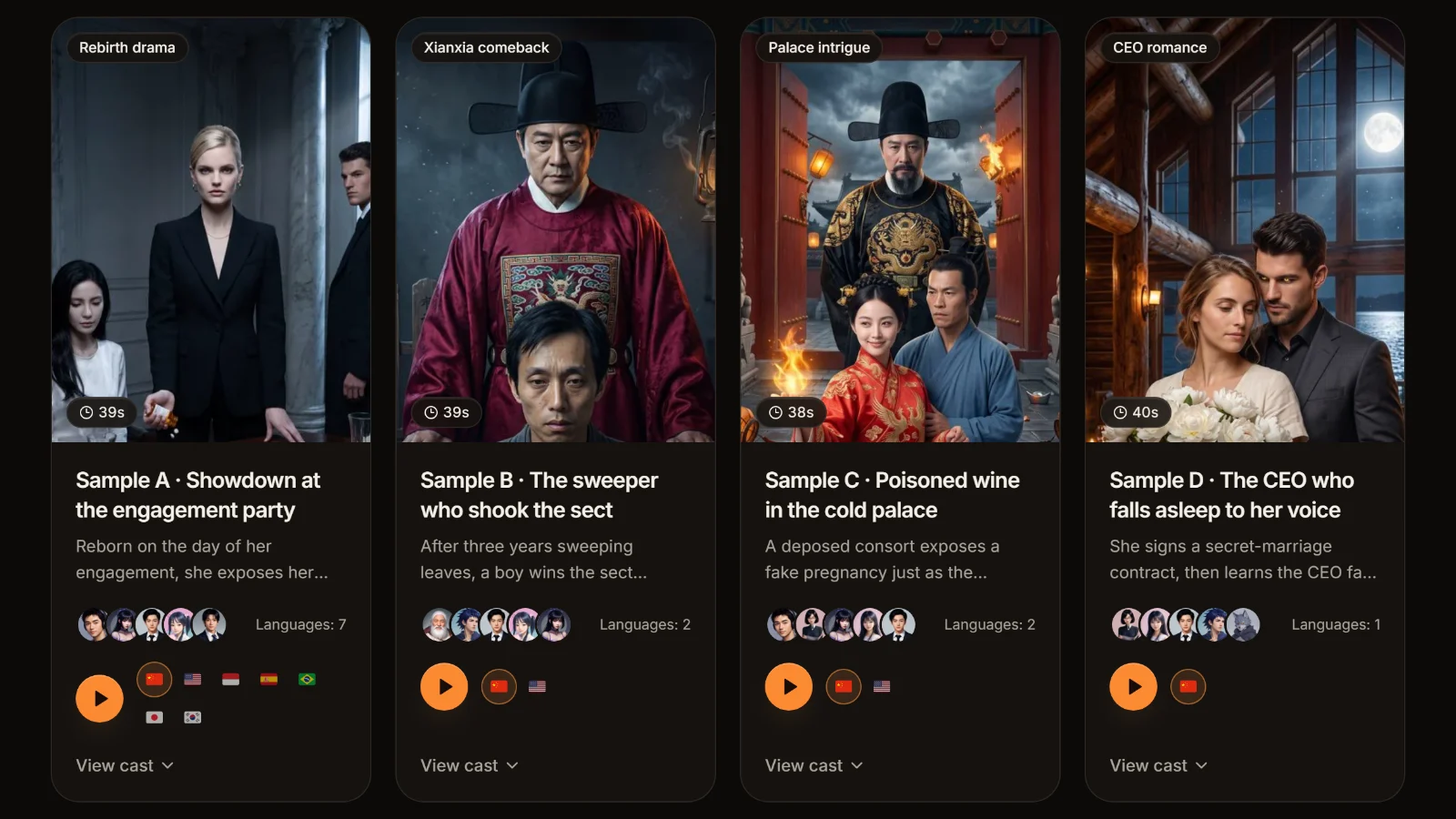
Turning dubbed episodes into an album: six conventions
Players group files by album and order them by track number. Here is a simple set of conventions for tagging short-drama and audiobook episodes.
Album = series + language
For example “The Engagement Party (English)”. Keep each language in its own album so episode 3 in Chinese never mixes with episode 3 in English.
Title = episode number + name
For example “Ep 03 · She Wakes Up at the Party”. Zero-pad the number so folders and players keep the order.
Include the total in the track number
Write it as 3/40 so players show “track 3 of 40” and audiobook apps can tell whether the set is complete.
Artist = your studio or channel
An AI dub has no human voice actor to credit, so the artist field is better used for your channel, studio or publisher name.
Tag last
Normalize audio volume, compress or merge first and tag at the end; any re-encode produces a new file without the old tags.
MP3 only
M4A keeps its tags in MP4 container metadata and FLAC uses Vorbis comments, both different from ID3, so this tool doesn't support them; convert to MP3 first with the WAV to MP3 converter if you need to.
Frequently asked questions
Drop your MP3s into this MP3 tag editor online, change title, artist, album, track number, year or cover, then save and download. Only the ID3 tag at the start of the file is rewritten and the audio is copied as is; no software and no account needed.
Yes. Album, artist, year and cover can be applied to every file at once, and track numbers are filled in natural file-name order as 1/12, 2/12 and so on. Several edited files download together as one ZIP.
No. The tag and the audio are separate parts of the file; the tool replaces only the tag and copies the audio frames byte for byte, without decoding or re-encoding, so quality, duration and subtitle sync stay the same.
The ID3 specification doesn't set one; this tool takes JPEG or PNG up to 4 MB and warns above 1 MB. The cover is embedded in every file, so the bigger it is the bigger each file gets; a square JPEG of a few hundred KB is sharp enough on phones and car stereos. Platform show artwork has its own separate rules.
No. M4A stores tags in MP4 container metadata and FLAC uses Vorbis comments, both different systems from MP3's ID3. This tool reads and writes ID3v2.3 and v2.4 tags in MP3 files only.
This tool has no option for that: when you edit titles and other fields, the TXXX:AIGC frame is kept as it is. The label is written to meet China's labeling measures, whose Article 10 forbids maliciously removing or concealing such labels or providing tools for it, and the EU AI Act also asks for machine-readable marking.
No. The browser reads your MP3s, and parsing, editing and rebuilding the files all happen on your device. No AI, no credits and no sign-in.








Tags tidy. Let us dub the next episode. Tagged, numbered, ready to play.
Paste a Chinese episode script or novel chapter: AI casts the characters, dubs it line by line and keeps the same cast across 8 languages, with MP3 and SRT exports. Cast analysis is free.
Billed by characters generated · Failed runs refunded automatically · Alipay, WeChat Pay and cards